Add Local Folders as Decal Categories
Starting with version 3.1, you can add local folders as categories within the Decal tool panel.
To configure this, navigate to the Addon Preferences: Edit > Preferences, then select the Add-ons tab and find Sanctus Library. Select the Decals tab within the preferences.
In the Decal preferences, click the Add Directory button.
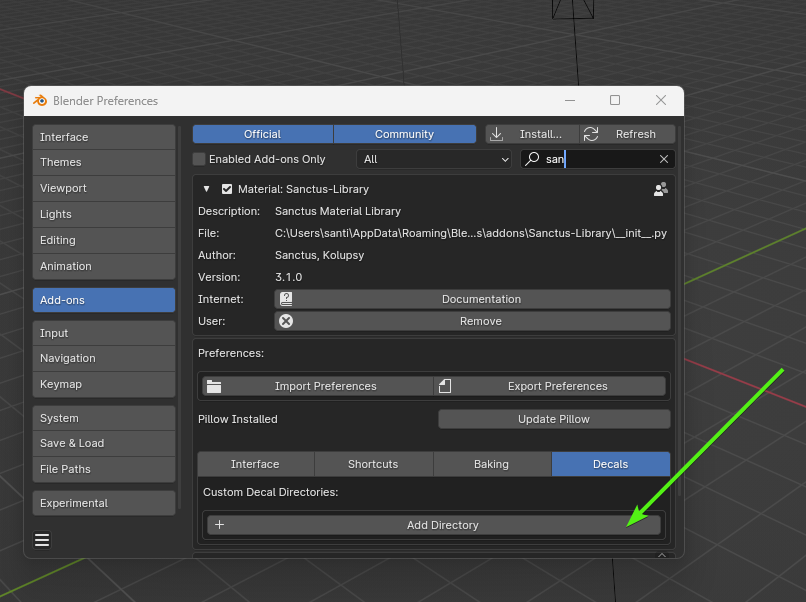
A new row will be added for each folder.
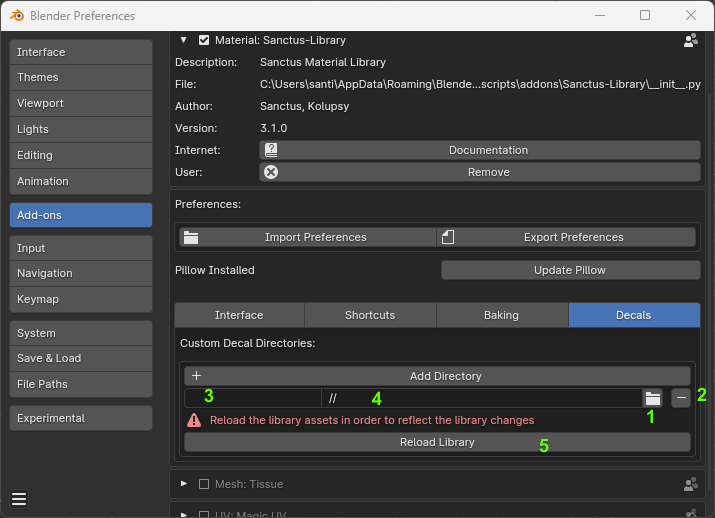
User Interface Elements
| Element | Description |
|---|---|
| 1. Folder Select Button | Click to navigate to the folder containing the images you want to add, then click Accept to confirm. |
| 2. Remove Folder Button | Removes the folder from the Decal categories. |
| 3. Category Name | The name for the category as it will appear in the Decals Panel. This field is editable. |
| 4. Folder Location | The path to the folder. |
| 5. Reload Button | A button to reload all assets in the library. This is necessary after any changes to take effect. |
Adding a New Folder
To add a new folder as a category:
- Click the Folder Select Button (folder icon).
- Navigate to the desired folder.
- Click Accept.
- Click the Reload Button to see the changes in the addon panel.
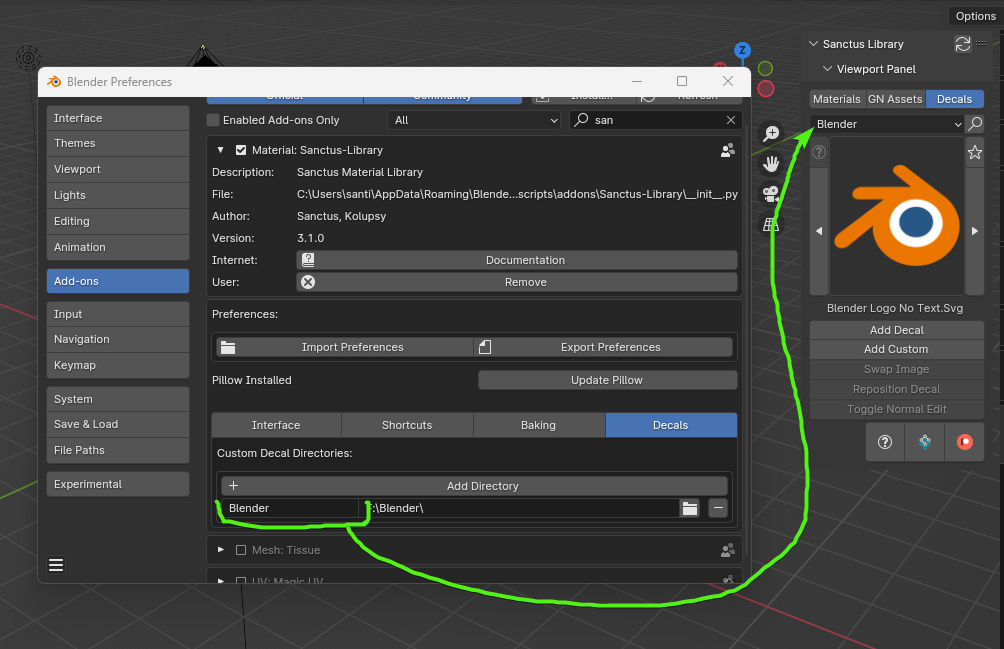
Removing a Folder
To remove a folder:
- Click the Remove Folder Button (the minus button).
- Click the Reload Button.
Important
Always click the Reload Button to see the changes reflected in the addon panel.