Install from Patreon
If you are a Patreon, connect your account to the Sanctus Hub to unlock products based on your membership tier.
1. Connect Your Account
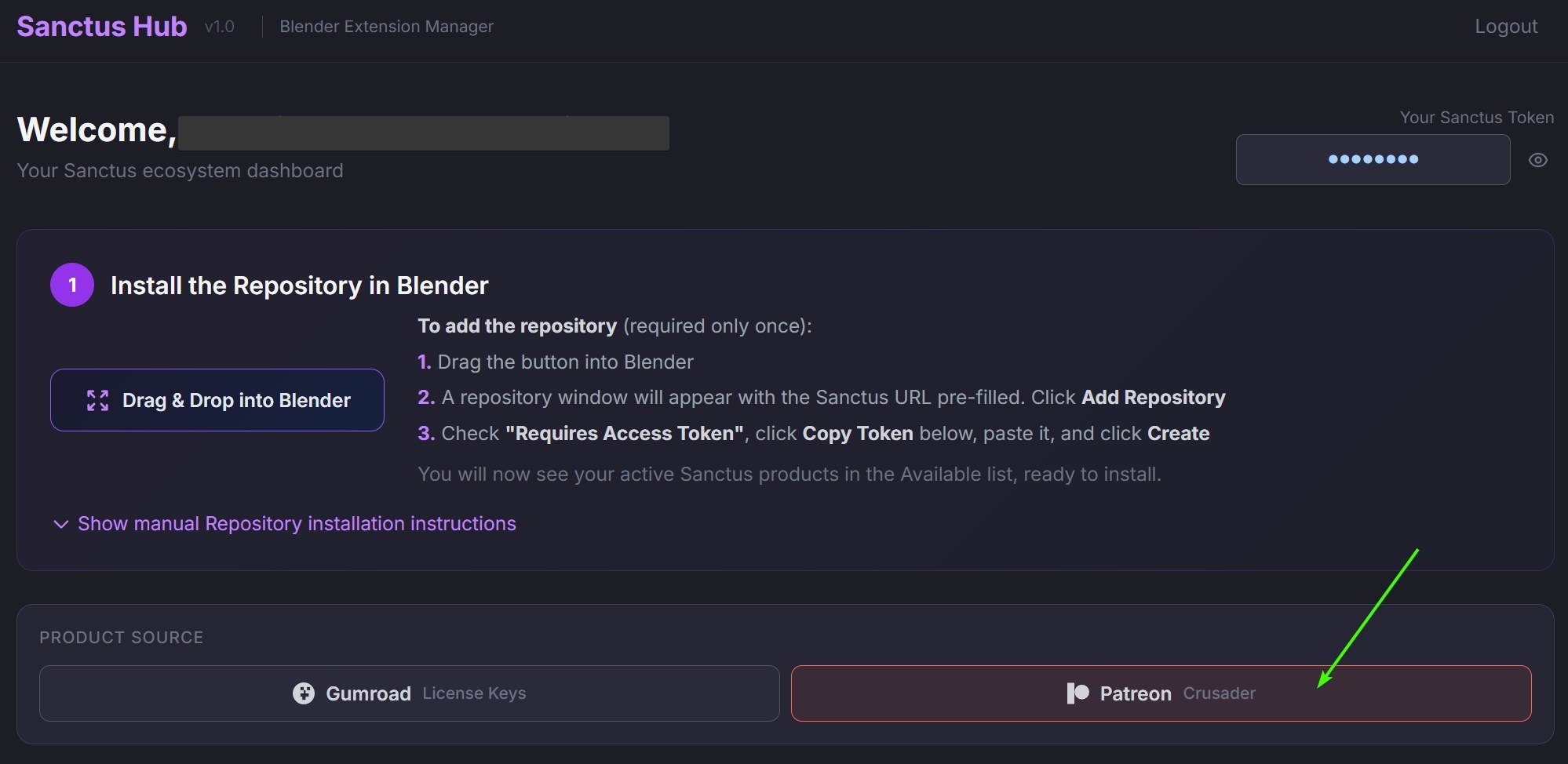
- Open the Sanctus Hub and sign in (Google, GitHub, Discord, or email).
- Click the Patreon tab.
- Click Connect your Patreon account.
- You will be redirected to Patreon to authorize the connection.
- After linking, your Patreon membership tier is detected automatically.
- Products matching your tier are unlocked instantly.
Sync Your Membership
If you upgrade your tier, click Sync Membership in the Sanctus Hub to refresh your access immediately.
| Tier | Price | Products |
|---|---|---|
| Supporter | €2/mo | Sanctus Library + Sanctus Bake |
| Crusader | €5/mo | Sanctus Library + Sanctus Bake + Wood Works + Liquid Works |
| Champion | €10/mo | All Sanctus products (Library, Bake, Wood Works, Liquid Works, Viz, Procedural Mapping, Vault) |
2. Install in Blender
Once your Patreon account is connected, install your products in Blender using one of these methods:
- On the Sanctus Hub dashboard, drag the "Drag & Drop into Blender" button into your Blender viewport.
- A repository window will appear with the Sanctus URL pre-filled — click Add Repository.
- Check "Requires Access Token", click Copy Token, paste it, and click Create.
- Your active Sanctus products will appear in the Available list, ready to install.
- In Blender, go to
Edit→Preferences→Get Extensions. - Click Add Remote Repository and paste the repository URL from your Sanctus Hub dashboard.
- Check "Requires Access Token" and paste your Sanctus Token.
- Click Create.
- Your products will appear in the Available list — click Install on each one.
3. Updates
With the Sanctus Hub repository connected, Blender can check for updates automatically:
- On Startup (recommended): Enable "Check for Updates on Startup" in the repository settings (
Edit→Preferences→Get Extensions→ Repositories → select your Sanctus repository). Blender will check each time it launches. - Manual check: Open the Get Extensions tab and click Refresh Remote. If a newer version is found, an Update button will appear.
Need help?
Visit the Support & Contact page.