Baking Other Materials (Not from the library)
Even if you don't have the Baking Sockets exposed in the Group Nodes, you can still bake almost any material. The baking engine now supports Auto-Populate for standard Principled BSDF setups, making it as easy as baking a library material.
Video Tutorial:
Pro Tip
If you don't see the nodes in the Shader Editor, press HOME to center them.
Method 1: Auto-Populate from Principled BSDF (Recommended)
The engine can automatically detect all connected channels from a standard Principled BSDF shader.
- Select the object with the material you want to bake.
-
In the SBake tab, click "Auto-Populate from Material".
The engine will back-trace from the Material Output node and detect: * Base Color — from the Base Color socket * Roughness — from the Roughness socket * Metallic — from the Metallic socket (only if connected or value > 0) * Normal — from the Normal socket (automatically converts bump to tangent space) * Alpha — from the Alpha socket (only if connected or value < 1.0) * Displacement — from the Material Output Displacement socket (with standard 1.0 Scale / 0.5 Midlevel)
-
Adjust resolution and samples, then click "Bake".
Method 2: Manual Socket Selection (Fallback)
Use this method for complex custom node setups that Auto-Populate cannot parse.
1. Identify the outputs connected to the Principled BSDF Shader.
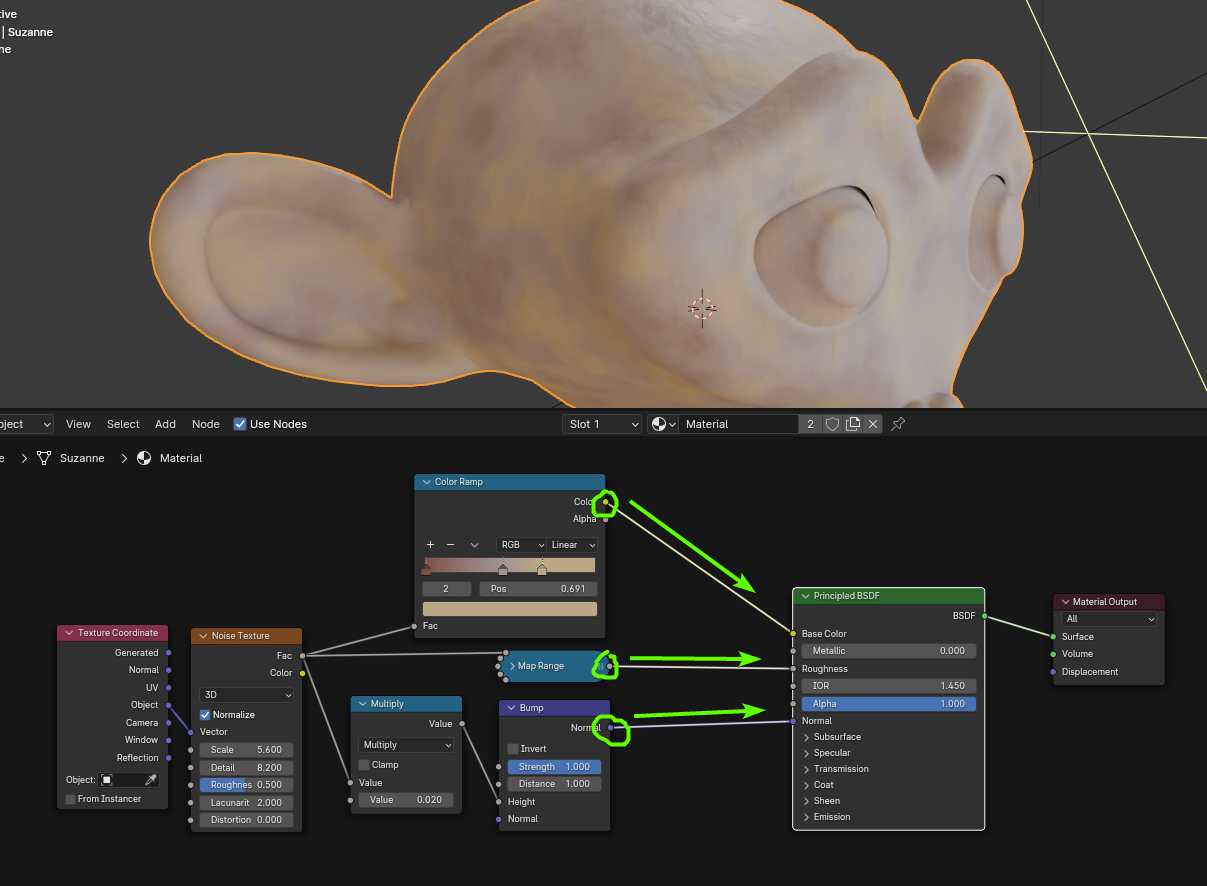
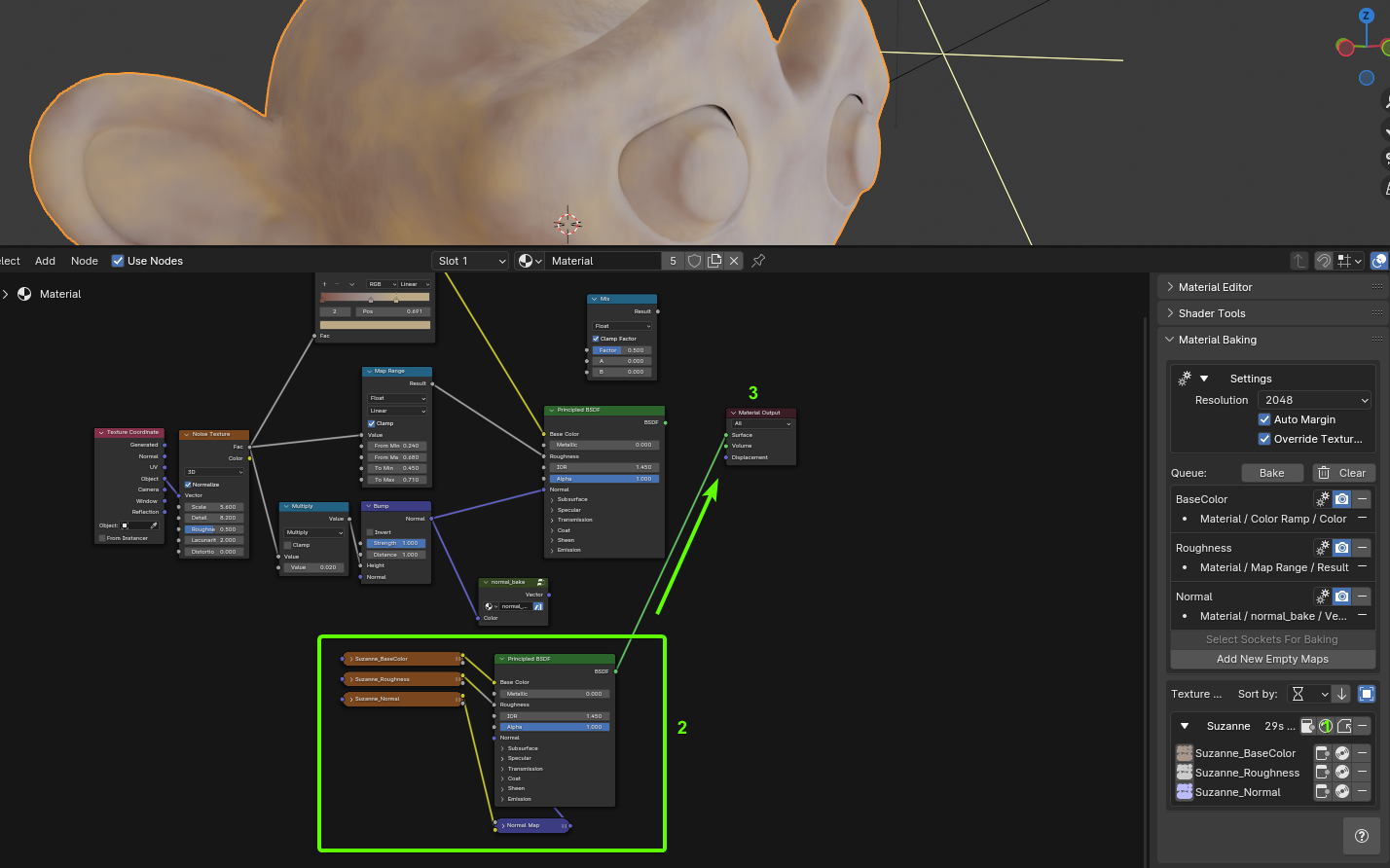
In this example, we have COLOR, ROUGHNESS, and NORMAL coming from the Color Ramp Color output, the Map Range Result output, and the Bump Node Normal output, respectively. We need to create a corresponding map for each in the baking panel.
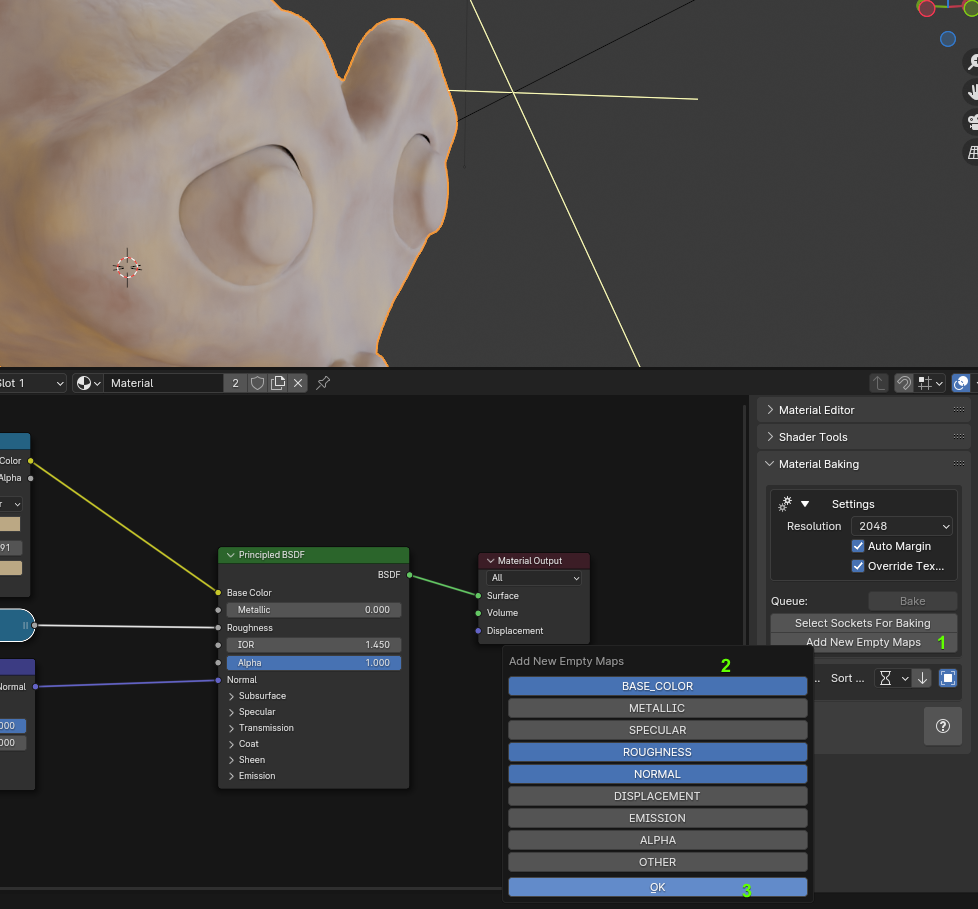
- Click the Add new empty maps button (1).
- Select the corresponding map types: "Color, Roughness, and Normal" (2).
- Click OK (3).
2. Select the source node for each map. Ensure your object is still selected.
- Select the Color Ramp node, as it is the source of the COLOR MAP (1).
- Click the Add Socket button from the Base Color Map (2).
- Select the correct output from that node's outputs; in this case, COLOR (3).
- Click OK (4).
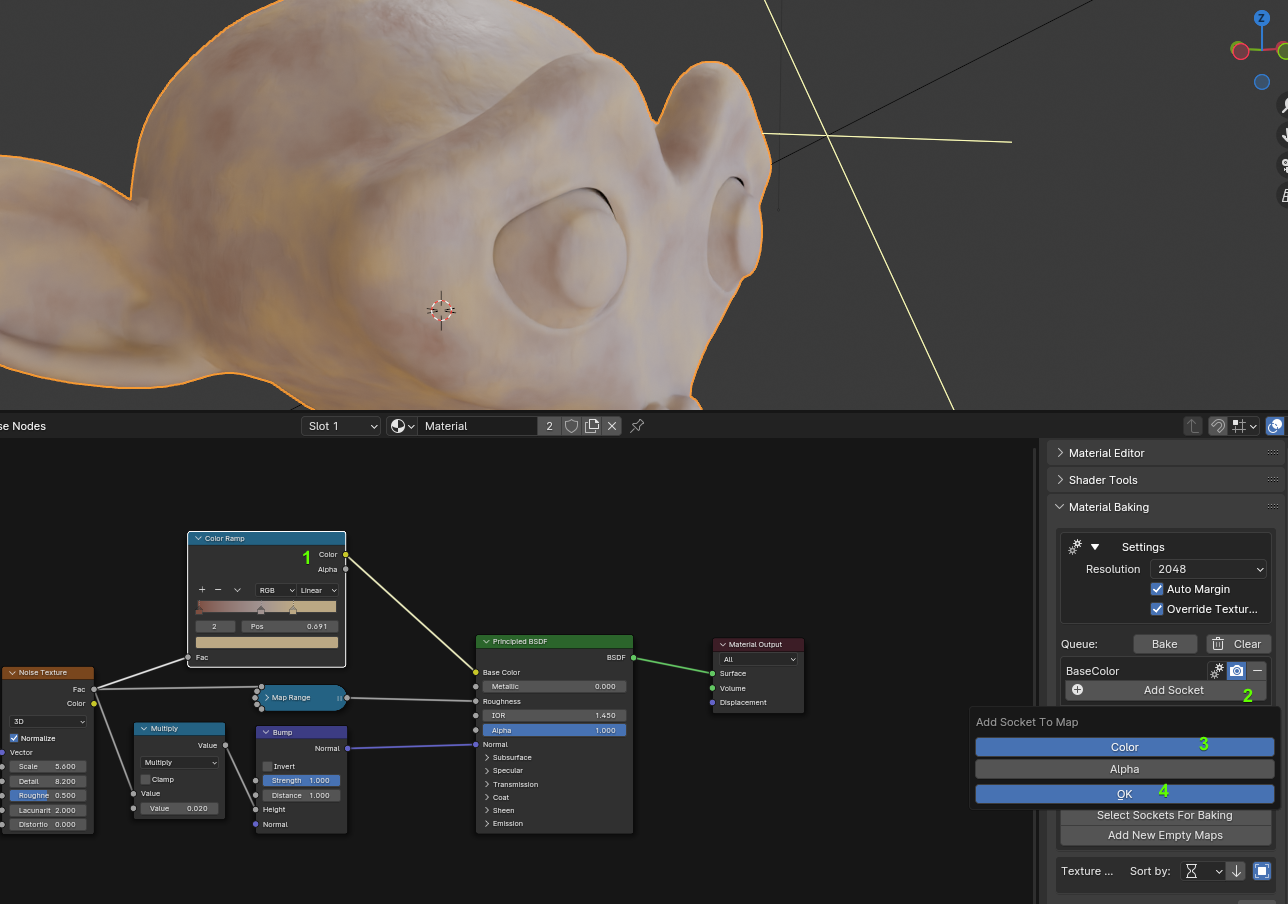
Repeat these steps for the Roughness Map, selecting the Map Range node and its Result output.
3. Normal Map from Bump (Simplified)
If your material uses a Bump node for the Normal input, you no longer need the Normal Bake conversion node. The baking engine automatically converts bump outputs to tangent space normals during the bake process.
Simply select the Bump node and click Add Socket on the Normal map, choosing the Normal output.
4. Bake the Material
- Adjust the resolution and samples as needed, and then click the Bake button.
- Once the bake is finished, click the Instantiate PBR setup button (1) to add the baked textures already connected to a Principled BSDF (2). Then, connect the Principled BSDF to the Material Output (3).
Here's the baked material replacing the procedural one:
Note
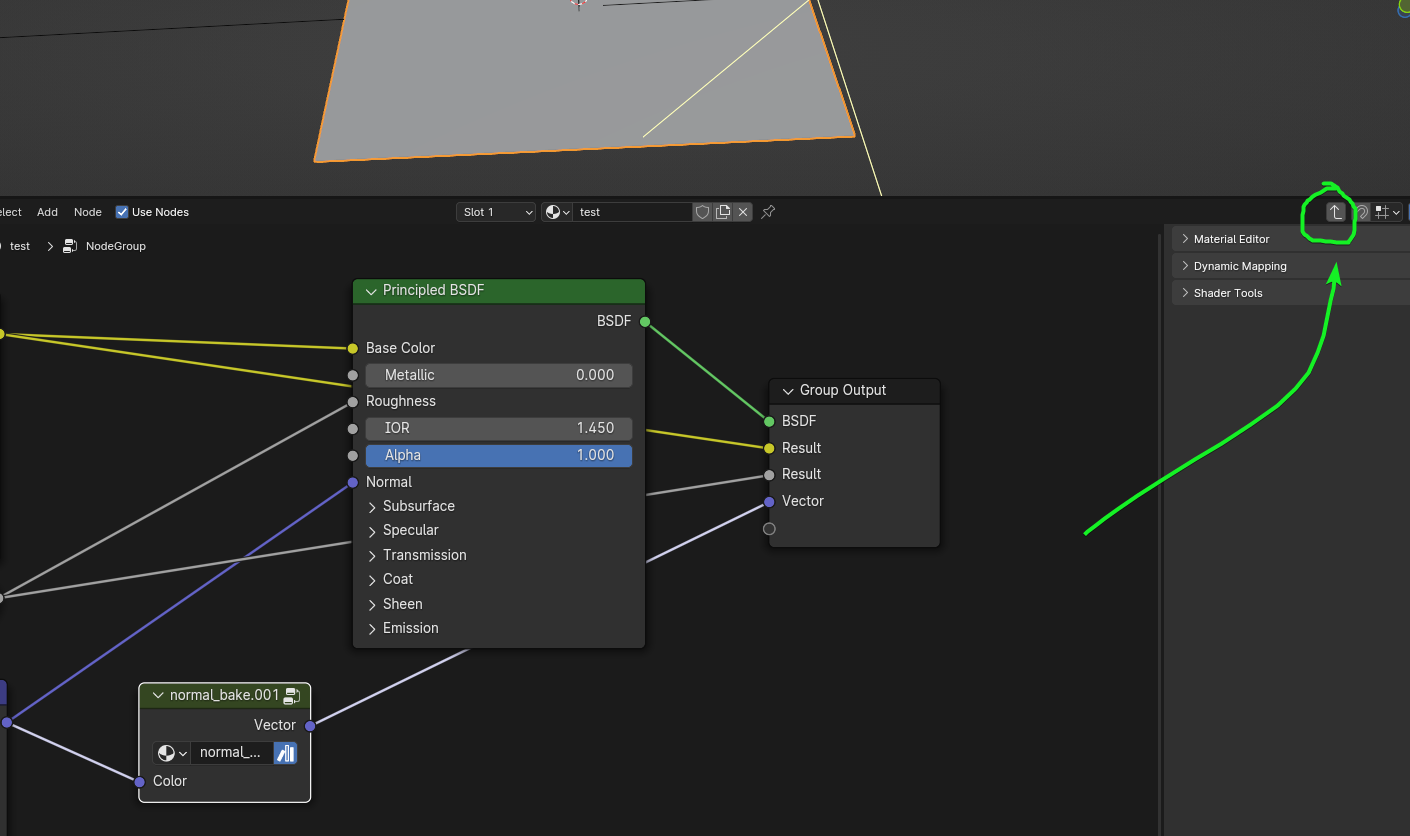
If the procedural material is inside a Group Node, click the icon (or double click the group node in later versions of Blender) to go inside (or select it and press TAB).
Expose the sockets you want to bake outside the Group Node:
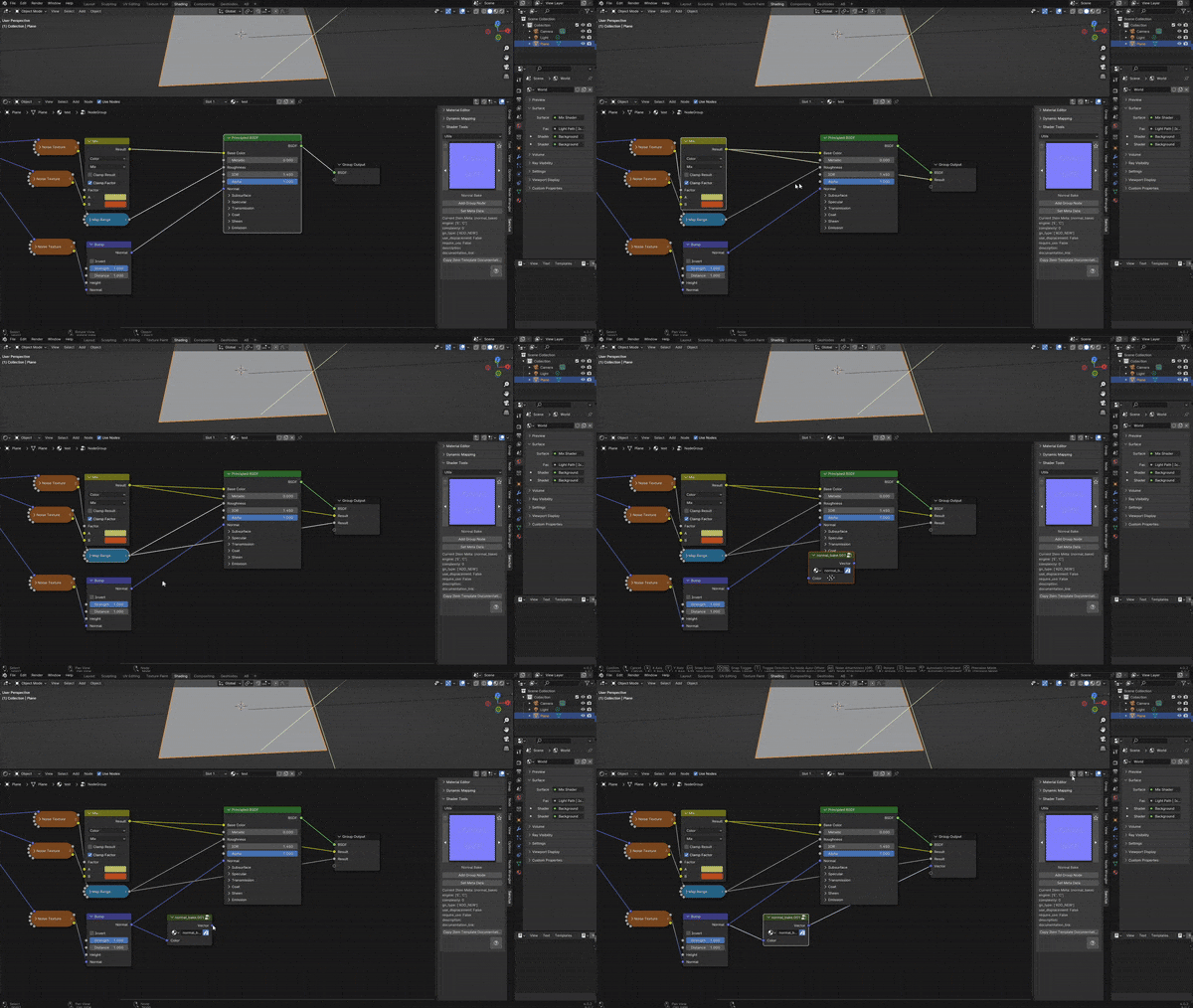
Exit the Group Node using the icon on the top right TAB.