Using Materials
Material Design Philosophy (Speed and Scale)
Sanctus Viz procedural materials are designed for speed compared to standard Sanctus Library materials. This is achieved through optimized node trees and strategic omission of costly nodes.
The design prioritizes lower processing times and maximum viewport performance by reducing weathering and surface imperfections. This makes the materials ideal for large, complex scenes.
Real-World Scale
The material scale is set to match real-world dimensions for quick integration into Arch Viz workflows. A 2-meter dummy object may initially display details that appear too small, but they are correctly sized to scale.
The Future of Materials
Balancing fast processing and realistic results is an ongoing process. Expect continuous adjustments and refinements to materials in future updates to provide the best performance/quality ratio.
Using the Materials
The addon panel is located in the viewport's N-Panel (N).
-
Click the "SViz" tab to access the addon.
-
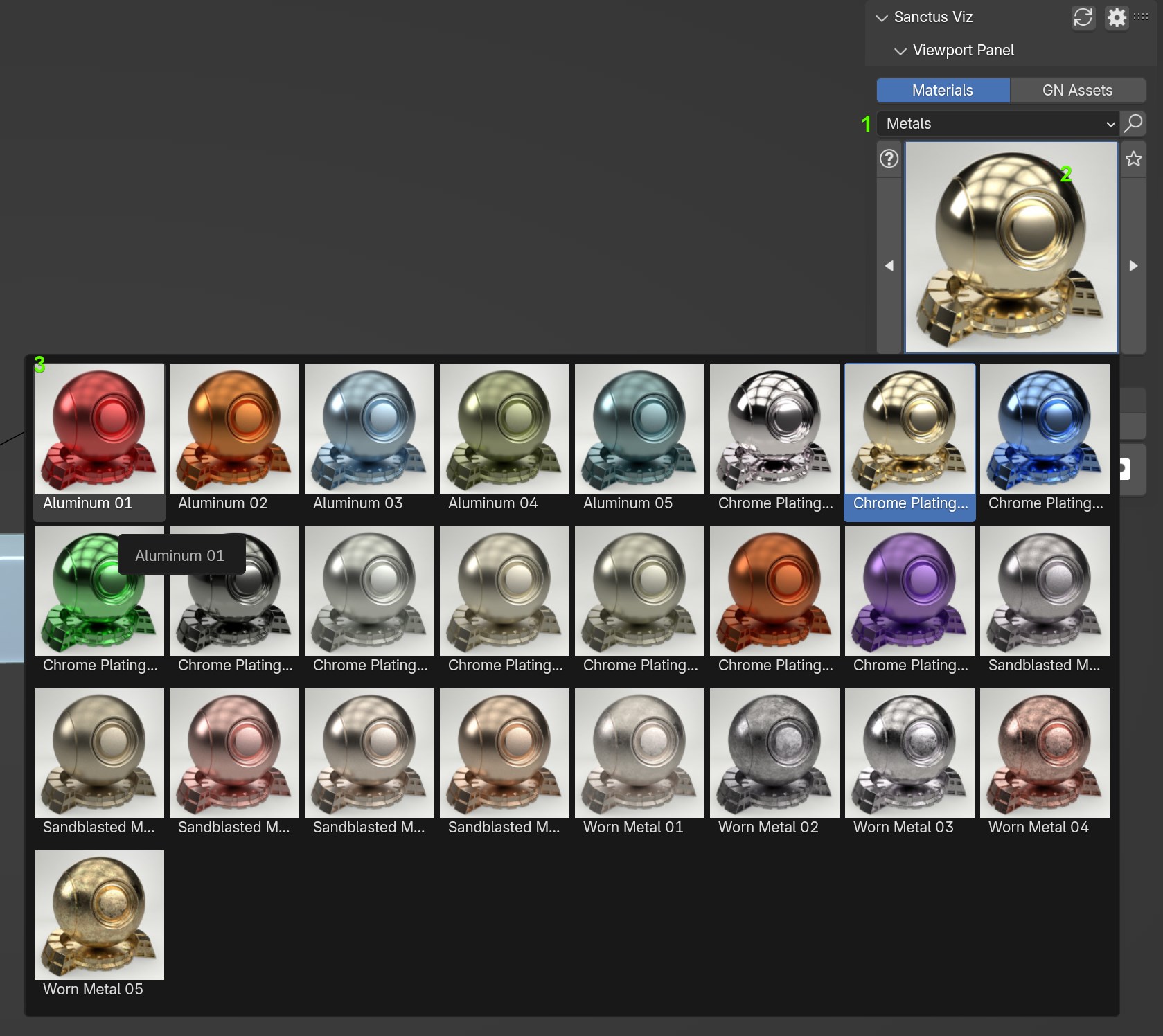
The panel contains the following elements:
Element Description Categories Select from different material categories. Selected Material The currently active material. Click to change the selection. Selection Preview Click to display the materials included in the current category.
To apply a material:
- Select the object.
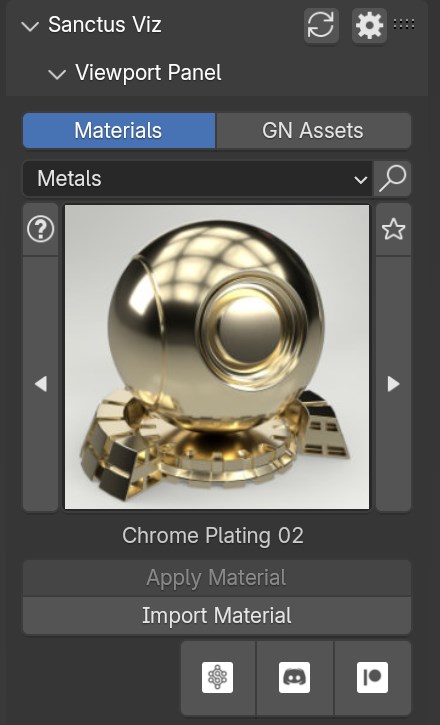
- Click the "Apply Material" button.
Alternatively, use the "Import Material" button to append the material to your blend file.
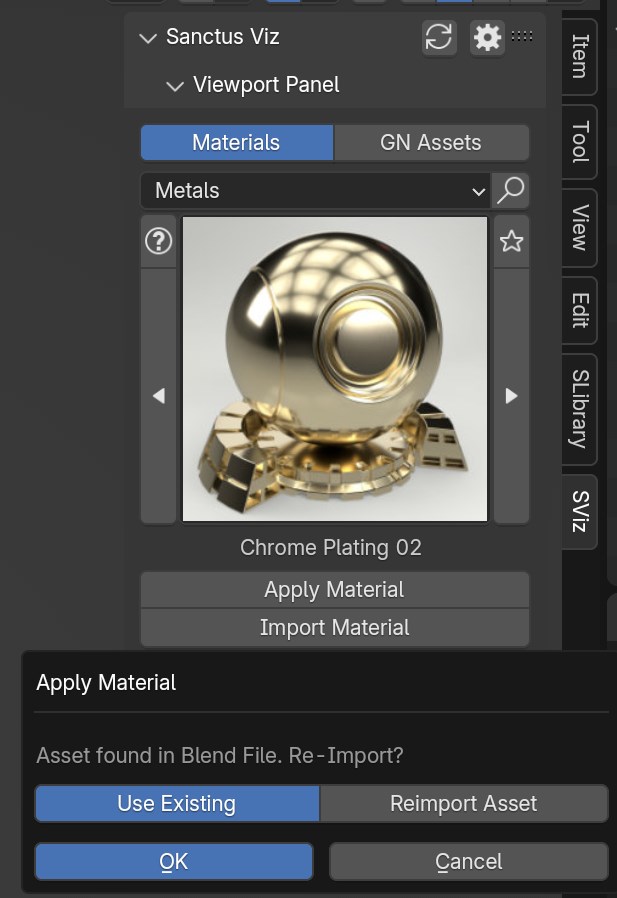
If the material is already assigned to an object, you will be presented with two options:
- Assign the existing version in your scene to retain any changes made to the material parameters.
- Add a new version of the material with the original parameters.