Before you start
Volume Bounces
Tip
Since we will be working with Volume Shaders, ensure the Volume Bounces in your render settings are set to at least 4. Lower values can result in excessively dark materials.
Caustics
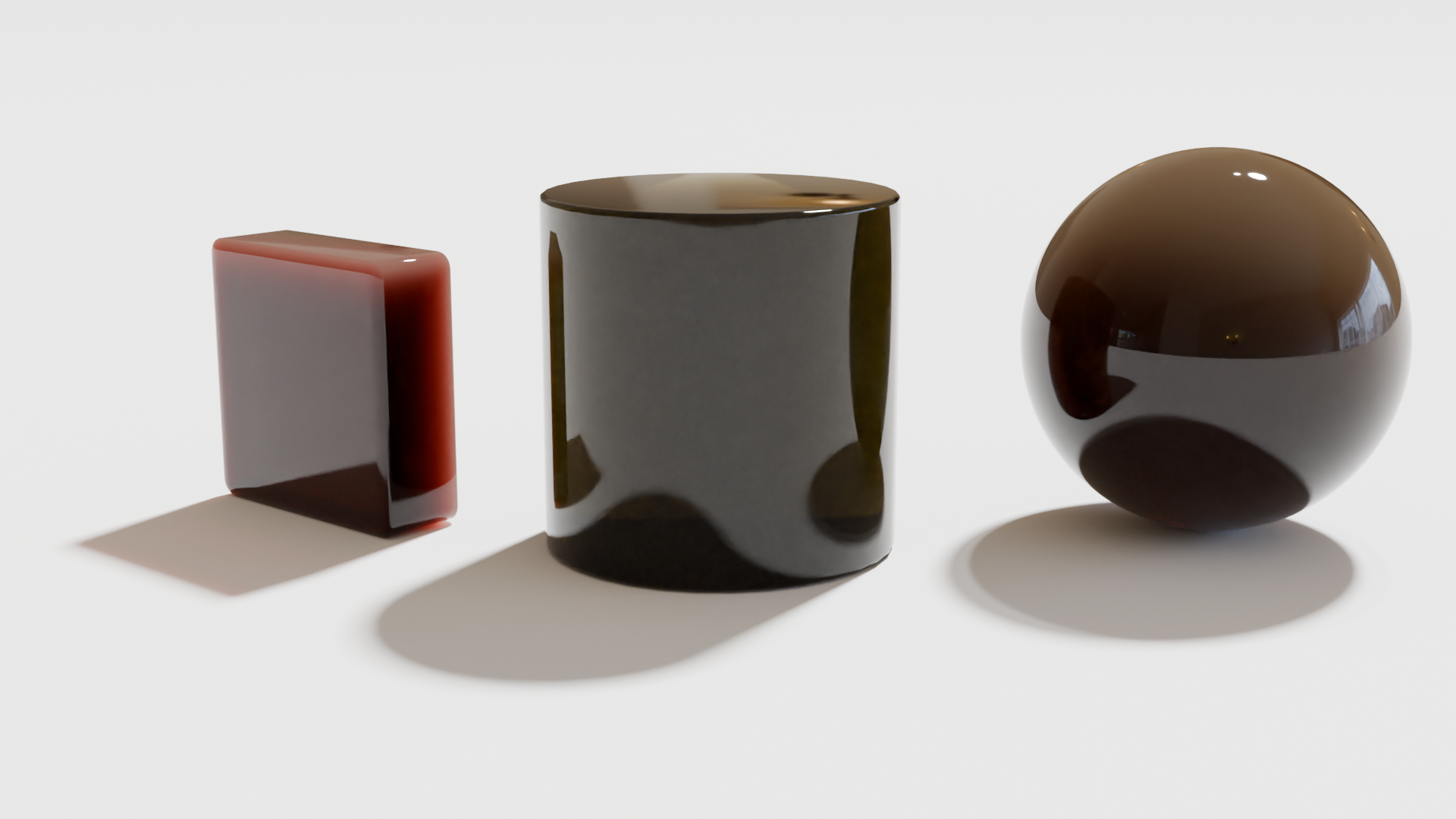
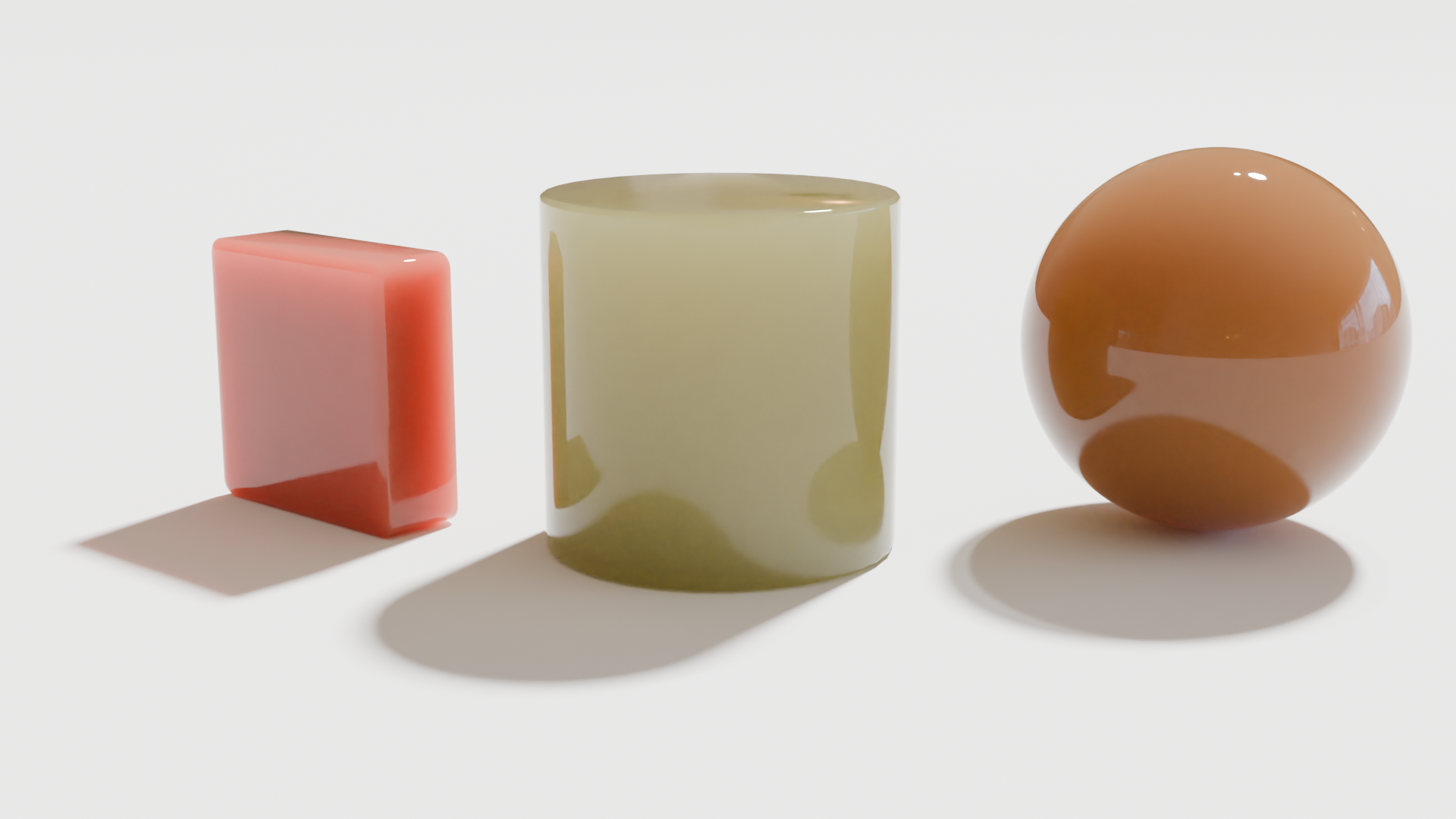
You can enable Blender Caustics using the Lights, Caster Object, and Receiving Object settings.
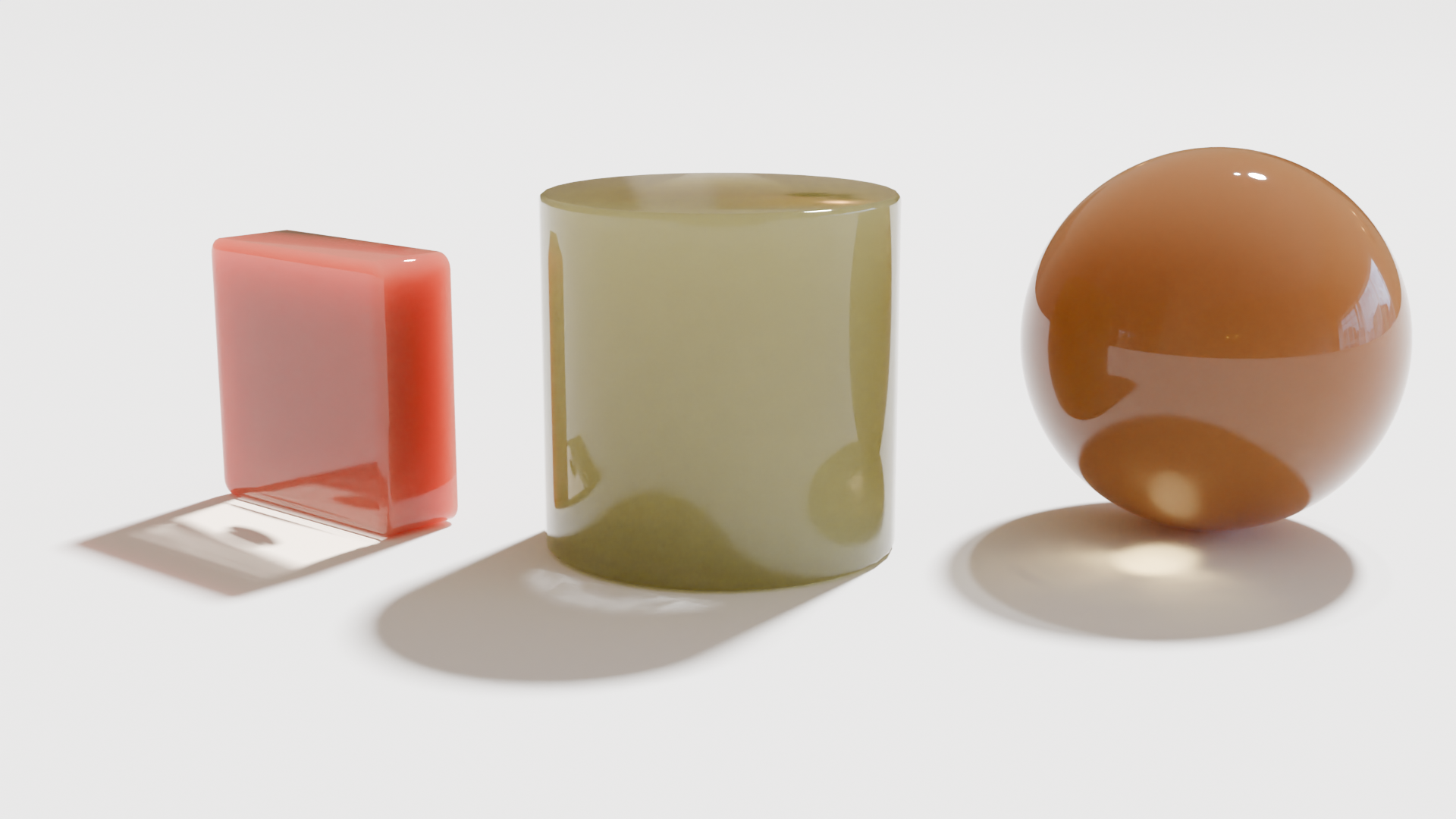
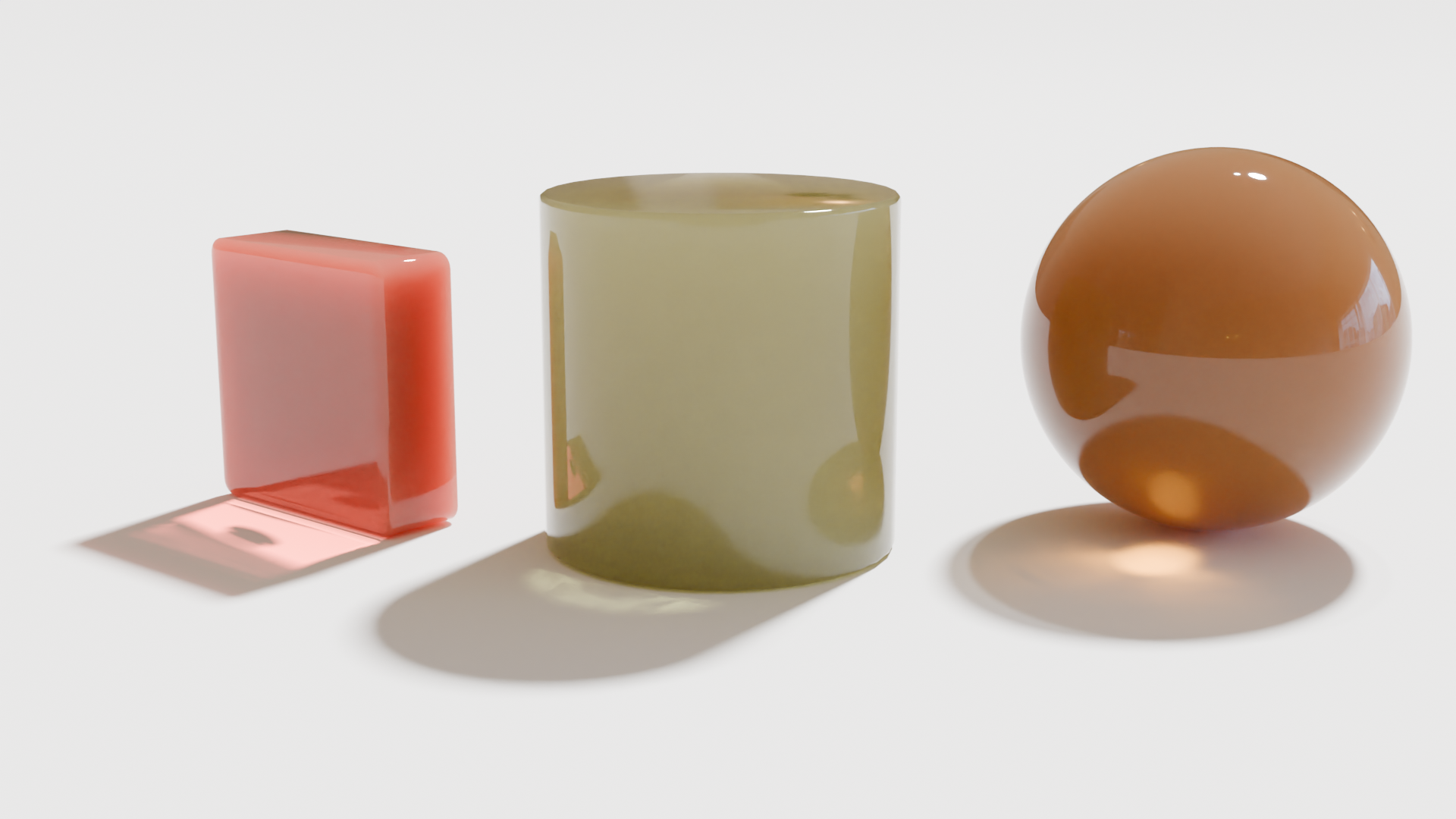
Sanctus Liquid Works materials include a parameter that allows you to customize the caustics color.
Auto-dimensions
When working with volumes and subsurface scattering, object scale significantly impacts the material's appearance. A volume density of 1 will render differently on objects of varying sizes. To provide flexibility, materials have an Auto-Dimensions parameter. Toggling this option maintains the material's look, regardless of scene scale.
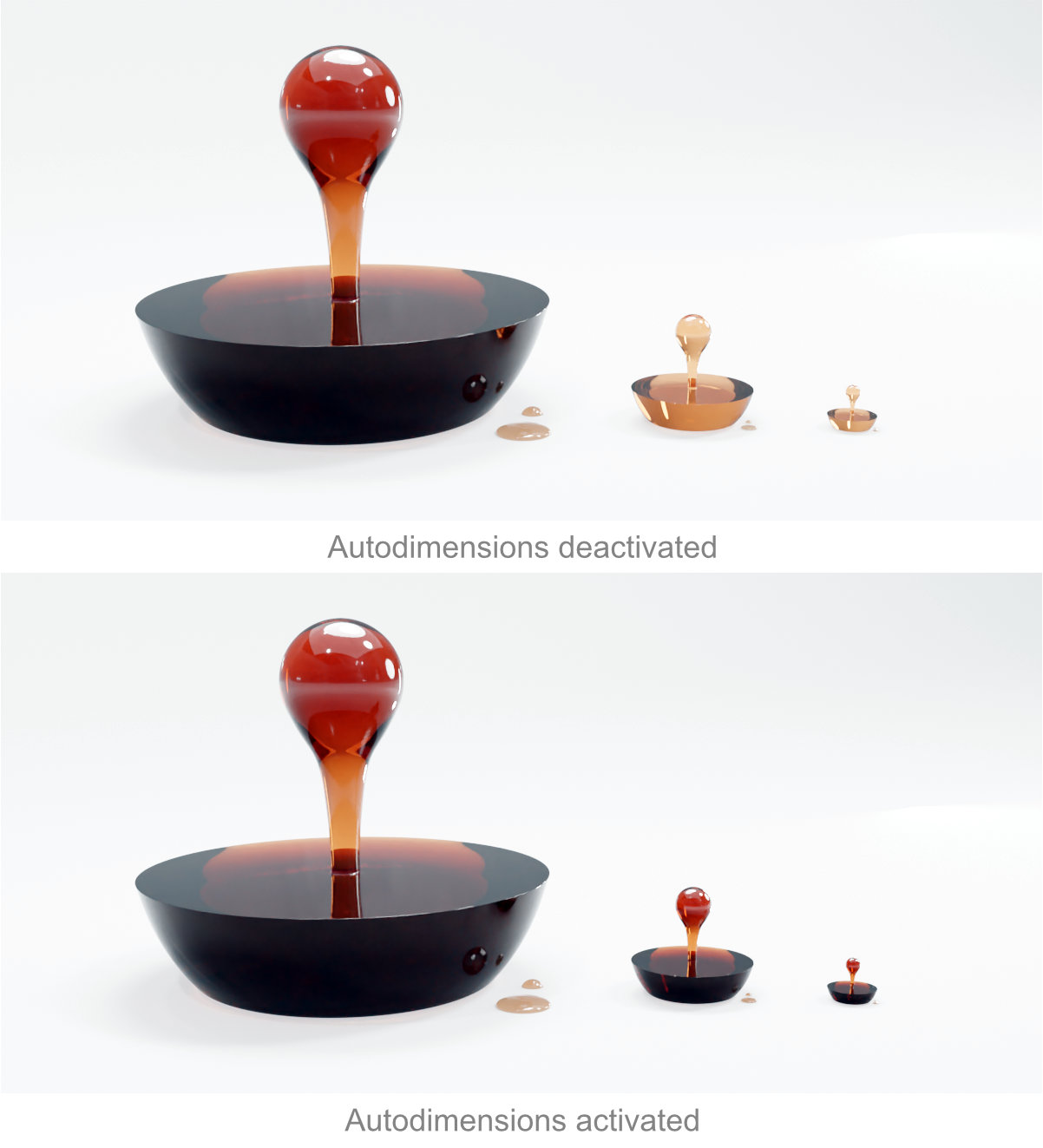
Important
While convenient for quick renders and tests, disable Auto-Dimensions if you intend to animate or resize the object during an animation or simulation. This allows the material to behave as expected based on a fixed scene scale. Refer to the intro video for further details.
Color View Transform
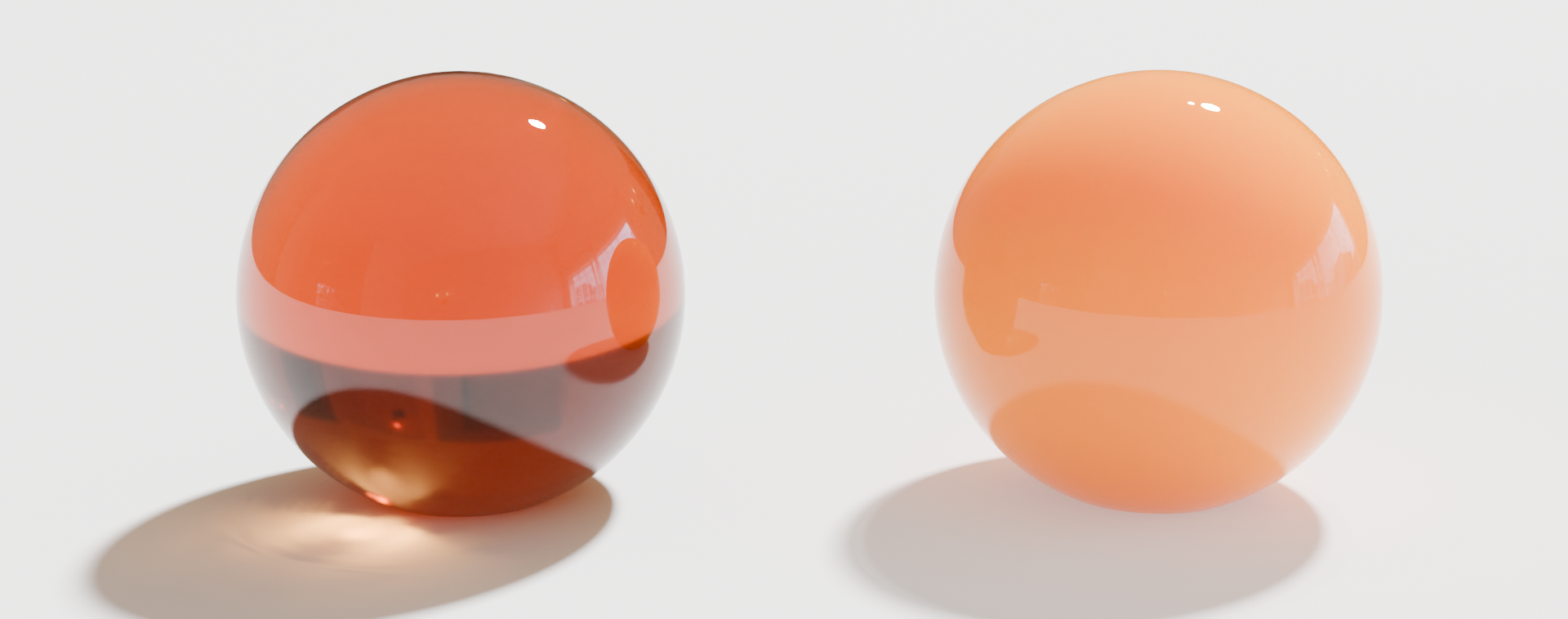
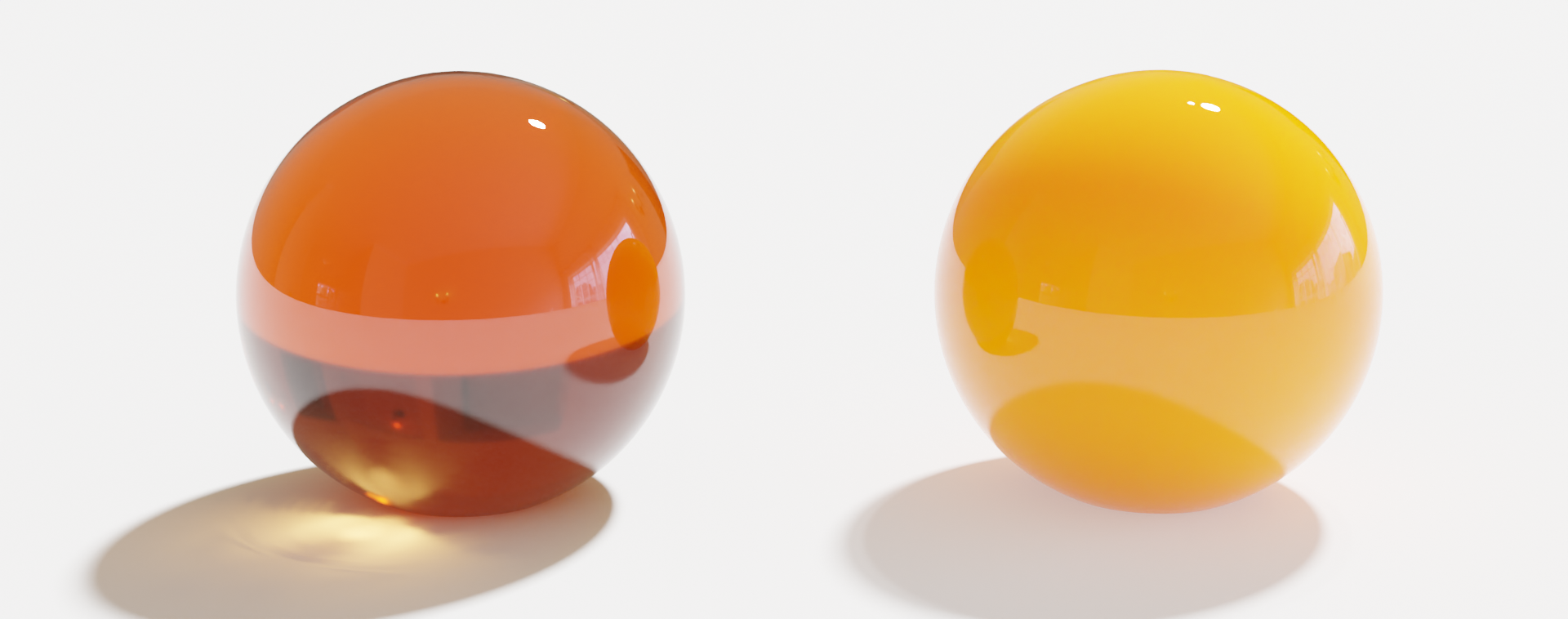
Certain materials, such as Orange Juice and Honey (particularly those with orange and saturated colors), may not appear as intended in the viewport when using AGX color management. If this occurs, switch to Filmic color management.
Foam
Performance Tip
Foam materials, especially dense foam, can be resource-intensive. Hiding objects with foam materials in the viewport can significantly improve performance.