Using Geometry Nodes Assets
The addon's main panel in the viewport N-Panel tabe named SViz (shortcut N) has a switch to change from Materials to GN Assets
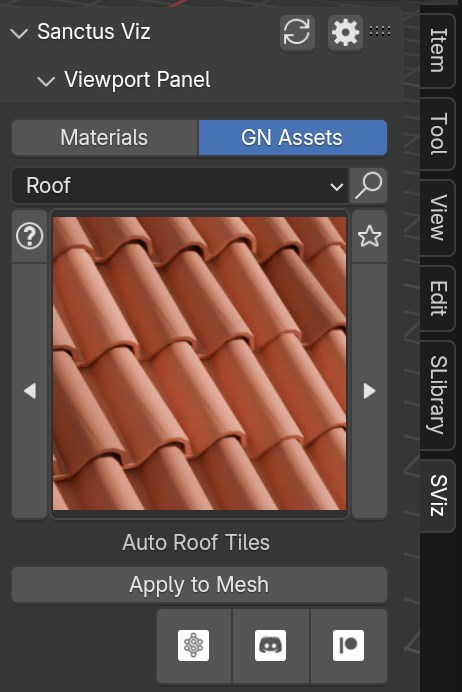
Like in the Materials module, you change the category and select the asset that you want to use.
Geometry Nodes Asset Types
There are multiple ways to apply or use the generators. Assets will have one or more of these options available depending on their type.
Add New: Adds the asset as a new object to the scene. (In most cases a stand alone object that won't interact with any other object)
Apply to Mesh: Applies the asset to the selected object. (for cases like converting an existing object to bricks, voxels or clouds)
Apply to Curve: Applies the asset to the selected curve. (Can be used on an existing curve to convert it to barbed wire or a cable)
Free Draw: Draws a curve with the asset. (adds a new curve with a generator and let's you start drawing it, can be used with flowers, vines, cables, ropes)
Draw on Surface: Draws a curve on a target objects surface, object gets parented to the target. (Ideal for moss, vines, grass, mushrooms and more)
Place on Target: Place a generator on the surface of a target object and aligns it to the targeted face normals. The object is also parented to the target. (Useful for tools like the Polygonal Array, screws, nails, buttons, HUDs and many elements that can get attached to another object)
Hair System Assets
The parameters
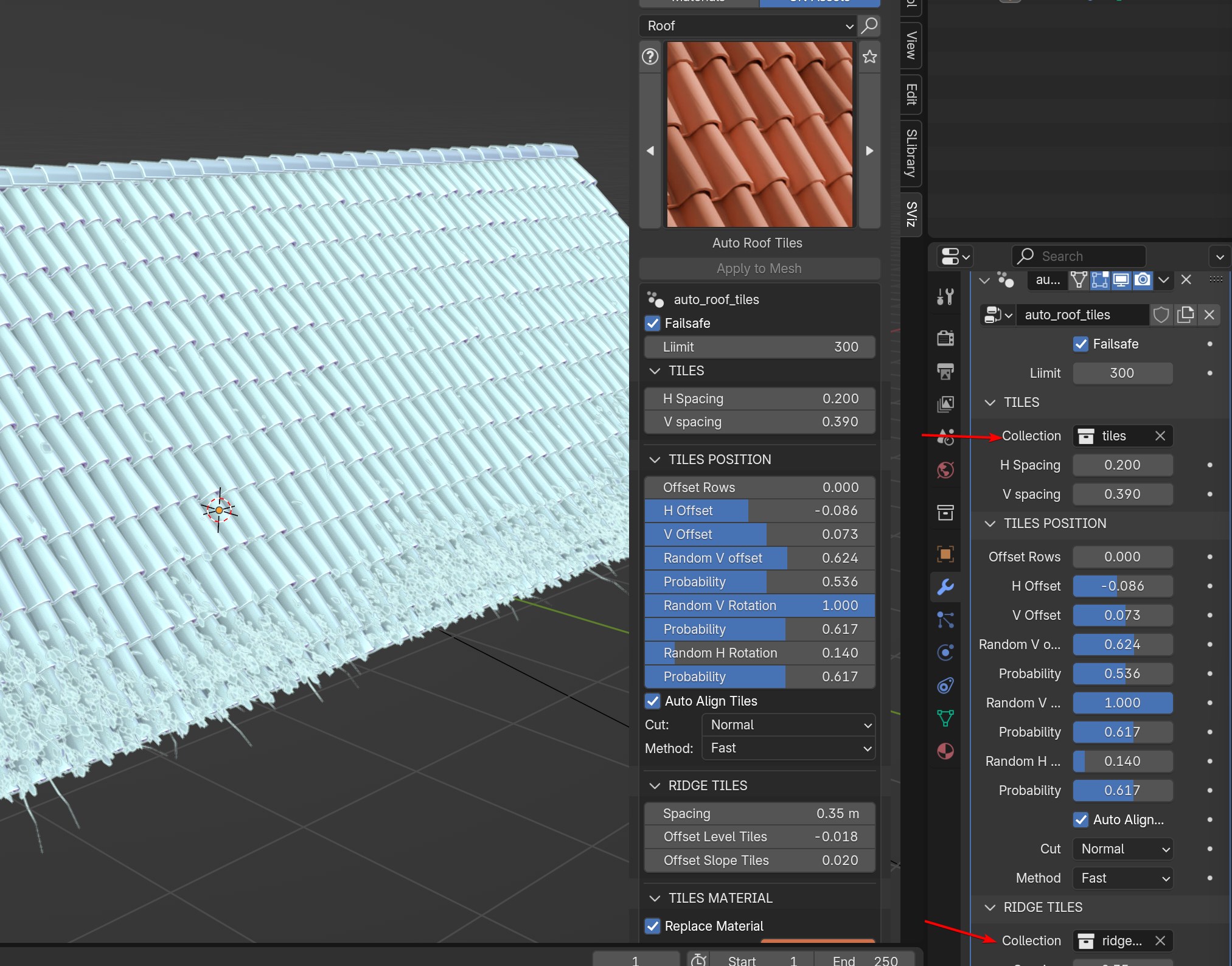
Most parameters will show in the addon panel when selecting a Geometry Nodes asset. But there are a few others like the assigned materials, target objects or collections that will only show in the modifiers tab.