The Decal Forge
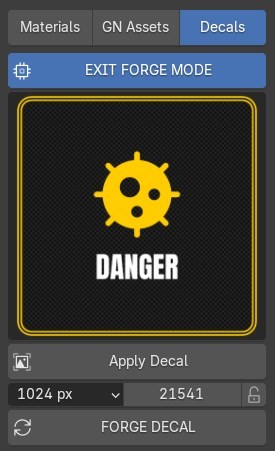
The Decal Forge is a powerful procedural engine designed to create custom decals and labels instantly. Instead of searching for the perfect sticker, you can define its theme, text, and icon, and let the Forge generate it for you.
Getting Started
To access the Decal Forge, look for the Forge Mode toggle at the top of the Labels & Decals panel. Enabling this will transform the UI into a specialized workshop for procedural creation.
User Interface Breakdown
- Resolution: Set the output quality. Higher resolutions are better for close-up shots.
- Seed: Use the default Random seed to cycle through infinite variations of the current combination of settings, or Lock the seed if you find a pattern you love and want to try an override keeping all other aspects the same.
1. Basic Options
This is where you set the core identity of your decal.
- Theme Selection: Choose from various visual styles (Industrial, Sci-Fi, Danger, etc.) that define the color palette and overall aesthetic.
- Layout Strategy: Select the background shape (Square, Circle, Octagon, Rect, or Triangle). The engine automatically adjusts the text and icon to fit the chosen shape.
2. Icon Options
- Icon+Text: A combination of an icon and text.
- Icon Only: Icon without text.
- Random: Randomly selects between Icon+Text and Icon Only.
3. Overrides
Fine-tune the content of your decal.
- Override Text: Input your own titles or serial numbers.
- Override Icon: Choose a specific icon from the built-in library.
- Override Font: Choose a specific font from the menu.
- Override Colors: Choose a specific color palette for the decal.
4. Decorations
- Style: Choose between Solid, Dotted, Dashed or Double line borders.
- Texture: Adds a subtle texture to the background.
5. Advanced Tuning
Precisely position your elements.
- Icon / Text Transforms: Adjust the Scale and X/Y offsets to perfect the composition. (click the LOCK seed icon to keep the same composition when re-forging)
Applying & Archiving
Apply Decal
Clicking Apply Decal will place your creation onto the selected objects' surface in the 3D scene.
Procedural Power
Once applied, you can toggle FORGE MODE off to return to the regular Decal Panel. From there, you can add procedural wear, scratches, and edge damage just like any other Sanctus Decal.
Library Export
If you want to keep your creation for future projects, use the Library Export section.
- Configure Folders: Before your first export, ensure you have added a "Custom Decals" directory in the Addon Preferences.
- Select Target: Choose the desired folder from the dropdown.
- Store to Library: Click this to save the decal. The file will be named
forge_{theme}_{timestamp}.pngand stored in your local library. - Reload Library: Click the Reload button FILE_REFRESH button to refresh the Asset Browser and see your new decal immediately.