The Favorites Deployer Tool
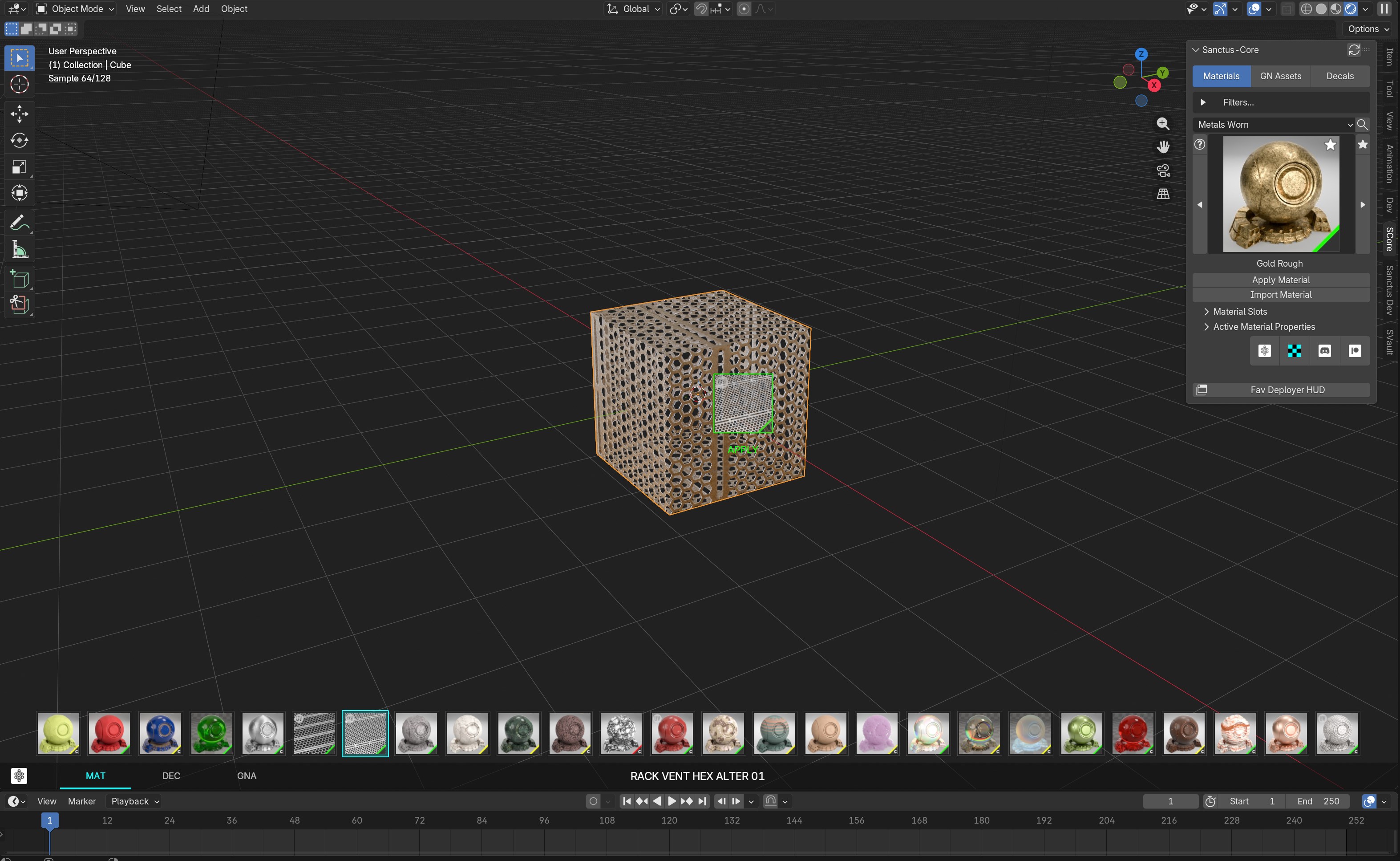
The Favorites Deployer Tool is a high-performance viewport HUD designed to streamline your workflow by providing instant access to your most-used assets.
While it shares some similarities with Blender's native Asset Browser, it offers a significant Smart Advantage: unlike the standard browser which simply assigns data, the Favorites Deployer understands the context of each asset. It automatically triggers the appropriate tools (like curve drawing for specific Geometry Nodes assets) and provides real-time visual validation during placement.
Interface Overview
The tool appears as a sleek, semi-transparent shelf at the bottom of the 3D Viewport.
- Asset Tabs: Switch between Materials, Decals, and GN Assets.
- Asset Grid: A scrollable horizontal list of your favorite assets thumbnails.
- Asset Labels: The name ofd asset is displayed clearly in the center of the bar.
Smart Drag & Drop
The core of the tool is the interactive drag-and-drop system. When you click and drag an asset from the shelf, several "smart" features activate:
Visual Validation
As you move the asset over your scene, the cursor is replaced by a "Ghost Icon" of the asset with a dynamic border: - Green Border: Indicates a valid target or placement mode. - Red Border: Indicates an invalid target (e.g., trying to apply a "Mesh Only" tool to a Curve). - Help Hints: Real-time text appears near the cursor explaining requirements (e.g., "TARGET: MESH OBJECT").
Smart Mode Switching TAB
When an asset has multiple types, you can change how it is applied while dragging. Press TAB to cycle through available methods: - Add New: Places the asset as a new object. - Apply to Mesh: Assigns the asset to the object under the cursor. - Draw on Surface: Immediately triggers a drawing tool to place the asset using curves on a surface. - Place on Surface: Snaps the asset to the face under the mouse.
Additional Options
While placing an asset. you will have some extra options available: - Rotate: Press CTRL + Mouse Wheel to rotate the asset. - Scale: Press SHIFT + Mouse Wheel to scale the asset. - Confirm: Press LEFT CLICK to confirm the placement. - Cancel: Press RIGHT CLICK or ESC to cancel the placement.
Controlling the Tool
The Favorites Deployer is designed to be there when you need it and invisible when you don't.
- Minimize: Click the small Addon Icon on the far bottom-left of the bar to collapse the tool into a single tiny icon.
- Toggle Off: If you prefer to use the standard N-Panel UI, you can completely disable the HUD by clicking the Favorite Deployer button in the addon's N-Panel. or usig ng th e assigned SKey Shortcut JKey''Shortcut Key
Manage Favorites
Each tab opens the FAVORITES category. You can add any asset to this list by clicking the "Star" icon on the asset's thumbnail in the regular library panels.
To remove an asset from the favorites, click the "Star" icon on the asset's thumbnail in the regular library panels.