Baking Materials with multiple Slots
Video Tutorial:
Prerequisites
Before baking
- The object must be UV unwrapped with no overlapping faces.
- The Cycles render engine must be selected.
- Open the SBake tab within the Shader Editor's N panel.
Guide
This guide uses a Suzanne object with two material slots: one for the head and one for the eyes.
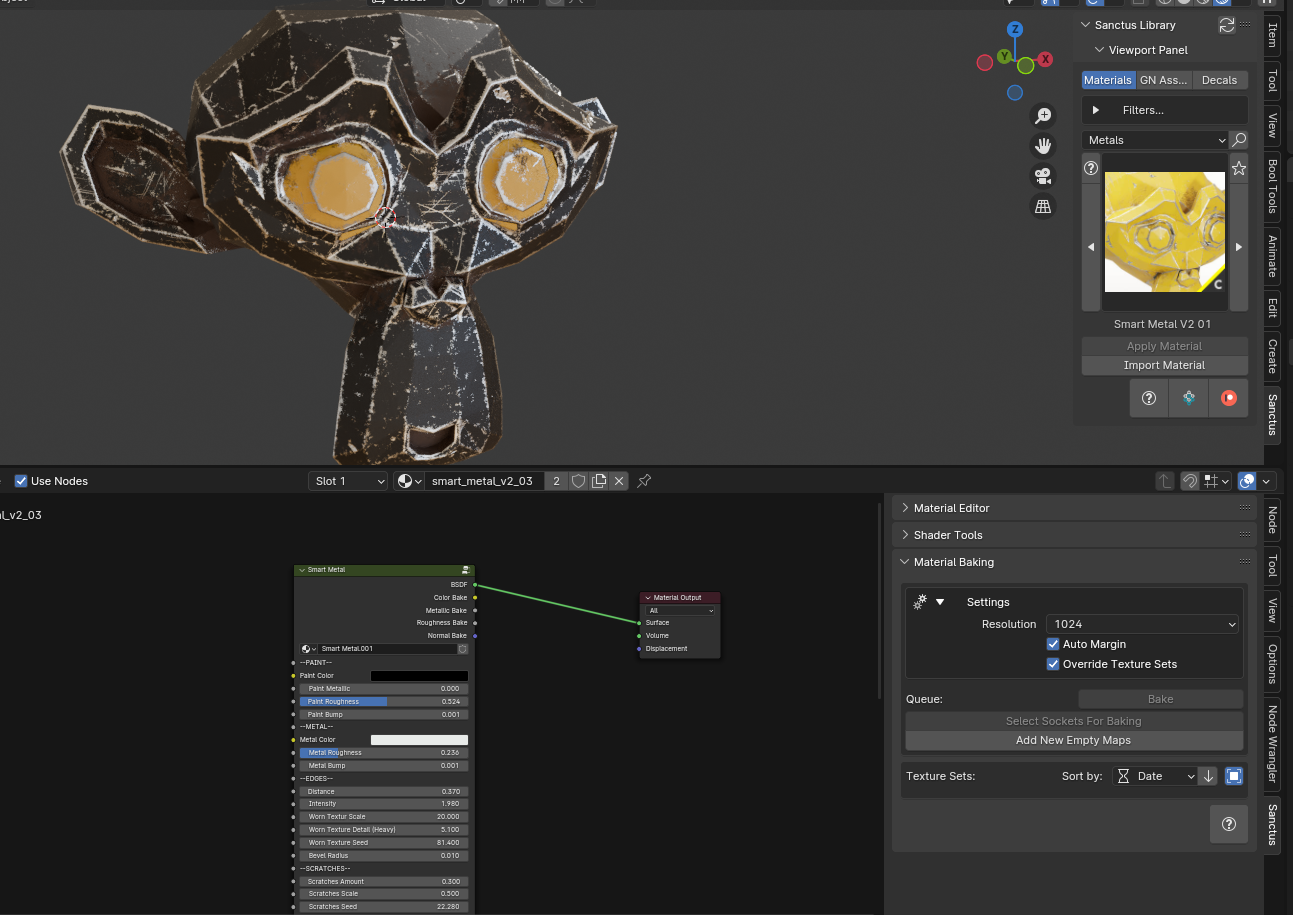
Method 1: Auto-Populate (Recommended for Multi-Slot)
The fastest way to set up a multi-slot bake. The engine automatically detects all map channels from all material slots on the object.
- Select the object.
- In the SBake tab, click "Auto-Populate from Material".
-
The queue will be populated with all detected maps. Each map will show entries for every material slot, identified by slot numbers like
[1],[2], etc.Slot Numbers
The
[1],[2]numbers correspond to the material slot index on the object. Slot 1 is the first material, Slot 2 is the second, and so on. These numbers appear automatically whenever the object has more than one material slot. -
Adjust the baking resolution, samples, and other settings as needed.
- Click the "Bake" button. The button will change to "Baking..." while the process is running.
- Once finished, the textures will appear in the Texture Sets area of the panel, ready for use.
Method 2: Manual Socket Selection
Use this method when you need fine-grained control over which sockets are baked for each slot.
Step 1: Configure the First Material Slot
Begin with the first material slot, as you would with a single material.
- Select the object.
- Right-click the Node Group of the material you want to bake.
- Click "Select Sockets for Baking".
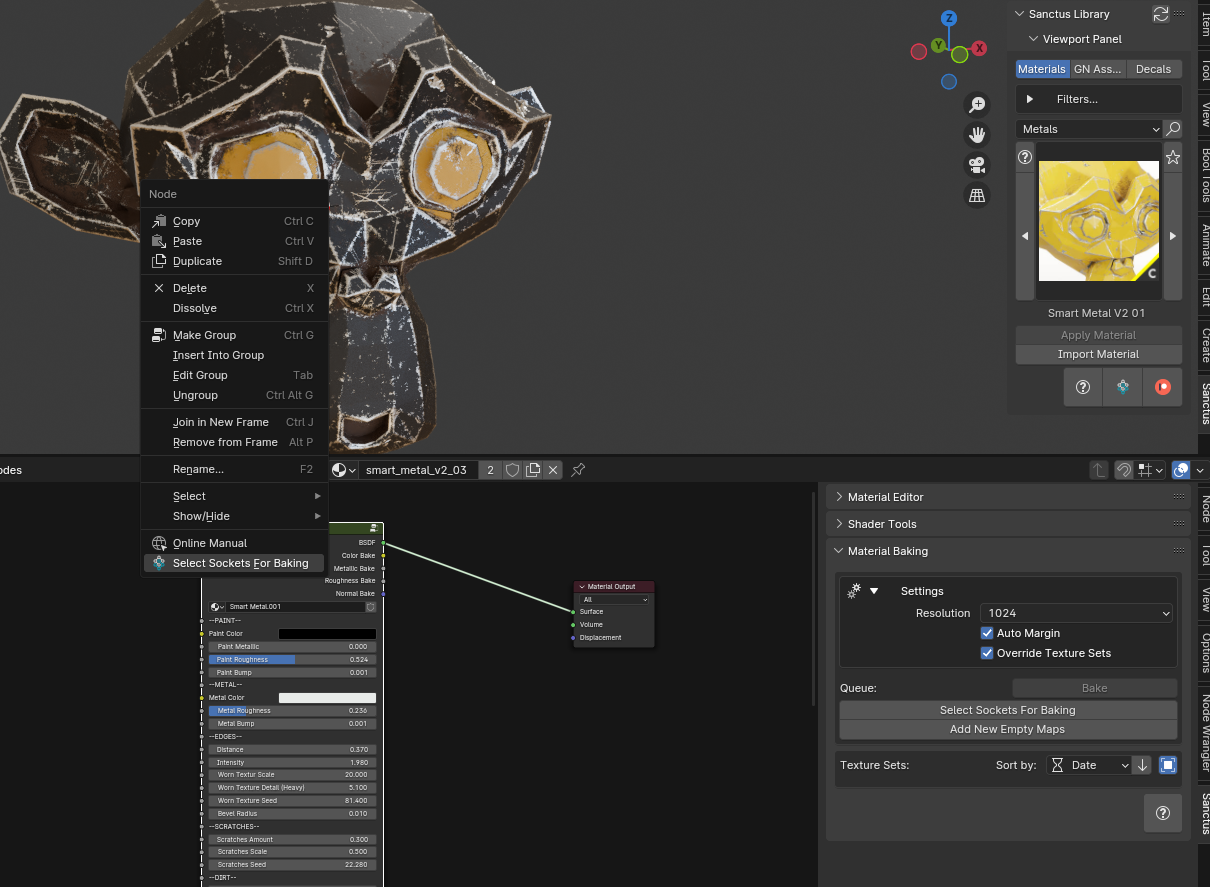
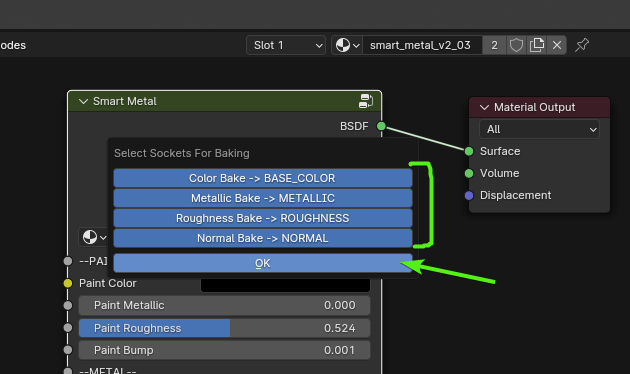
- Select the sockets to bake in the pop-up window and click OK.
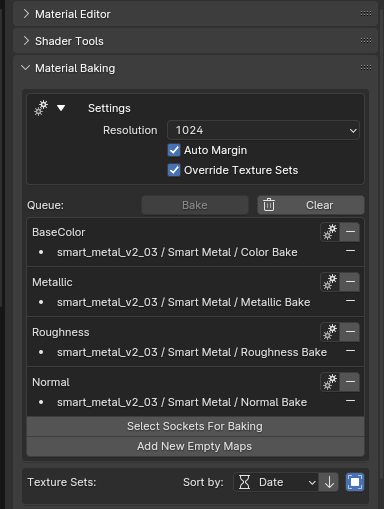
The selected sockets will appear in the SBake Tab of the N panel.
Step 2: Configure the Second Material Slot
- Select the next material slot.
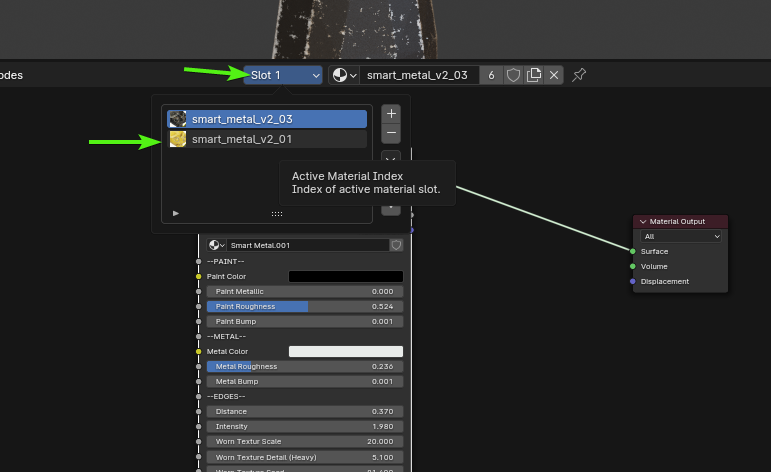
- Select the Node Group from the second material. You will see an Add Socket button appear in the SBake Tab for each map.
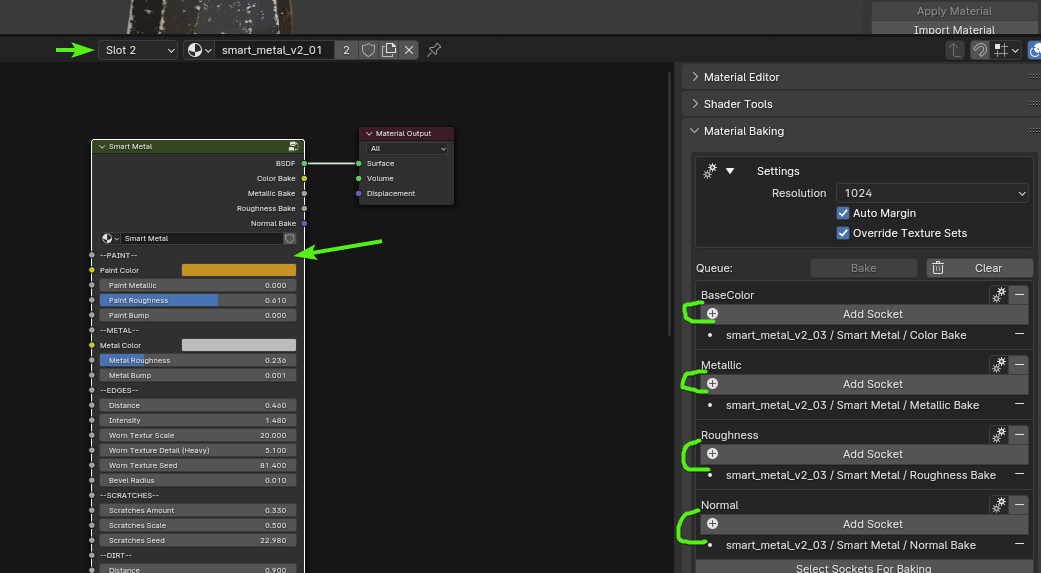
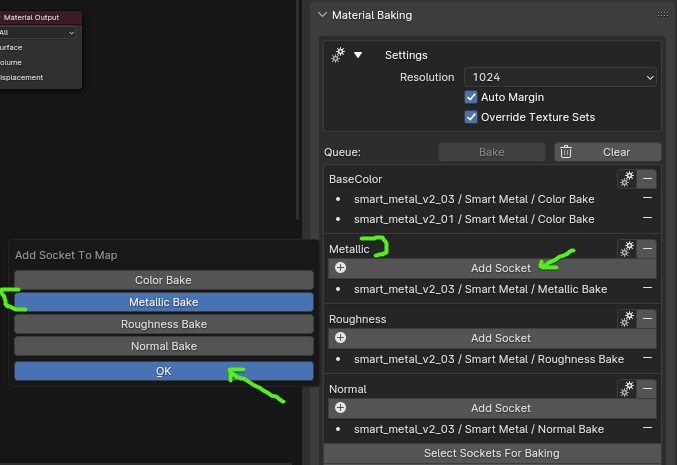
- Click each Add Socket button and add the corresponding socket from the second material slot for each map. Match the bake types to the socket types (Color to Color, Roughness to Roughness, etc.).
Tip
If one material has more baking sockets than the other (e.g., an emission or displacement socket), just leave the corresponding map with only one element. The baking tool will assign a default value to the missing socket.
Step 3: Bake the Materials
- Adjust the baking resolution, samples, and other settings as needed (use the Gears Icon Button for the samples and map type switch if needed).
- Click the Bake button. The button will change to "Baking..." while the process is running.
- Once finished, the textures will appear in the Texture Sets area of the panel, ready for use.
Step 4: Post-Bake Setup
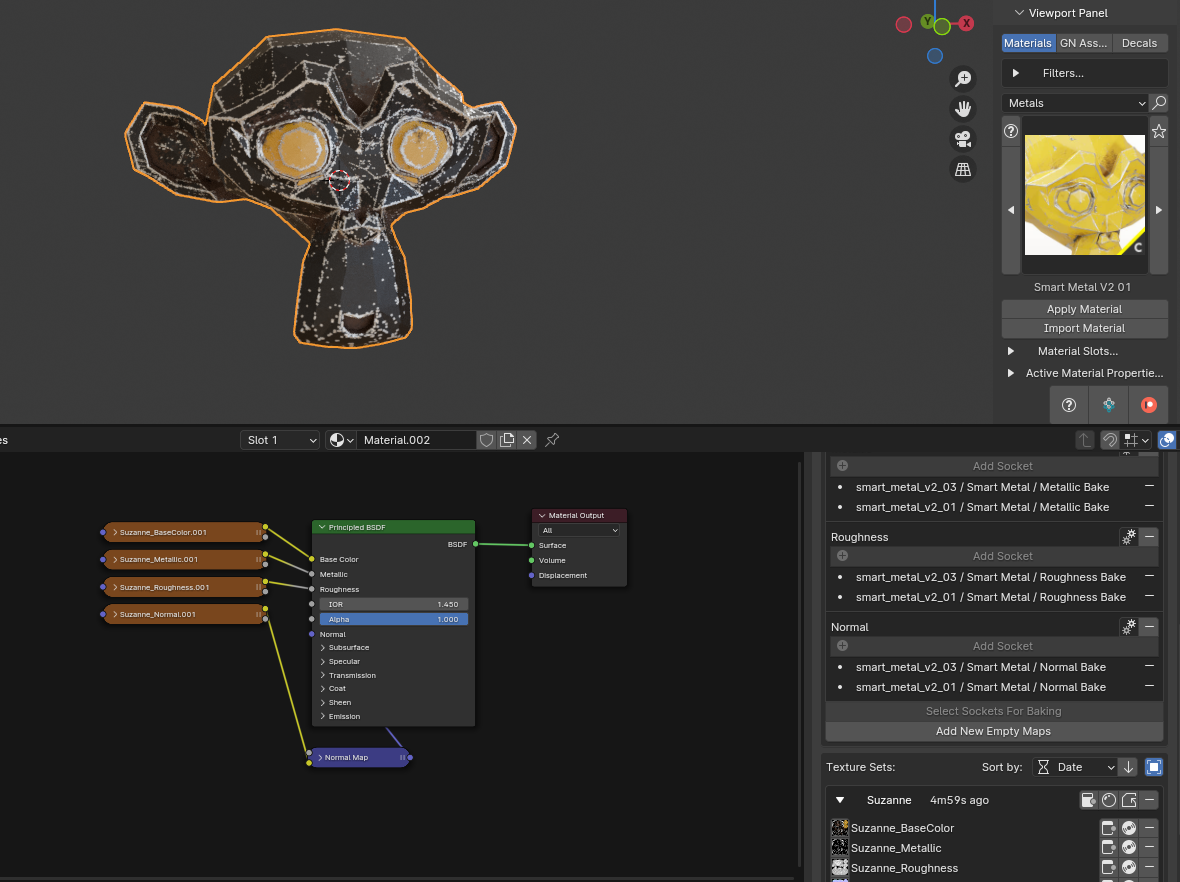
- You can now delete the material slots and create a new material. The baked textures will remain linked to the object.
- After creating the new material, the baked textures will still be visible in the baking panel.
- Click Instantiate PBR setup to create a quick node setup for replacing the procedural material with the baked textures.
Understanding Slot Numbers
When baking objects with multiple material slots, each map in the queue shows slot numbers like [1], [2] to indicate which material slot each entry belongs to.
- Slot
[1]= First material slot on the object - Slot
[2]= Second material slot on the object - ...and so on
The slot numbers are 1-based and match the order shown in the Material Slots list in Blender's Properties panel > Material tab.
Flat Values (Slider Values)
If a material slot doesn't have a connected texture for a particular map (e.g., Metallic is set to 0.0 via slider), the engine stores that per-material flat value and displays it directly in the UI:
[1] Head Material = (0.000, 0.000, 0.000)
[2] Eye Material = (1.000, 1.000, 1.000)
This means Slot 1 uses 0.0 Metallic and Slot 2 uses 1.0 Metallic — each slot keeps its own value independently.