Extension Manager
Important
The Extension Manager started as a solution for Gumroad sales, since Superhive has its own built-in repository manager. However, you can use the Sanctus Hub for products from both markets if you prefer a single dashboard.
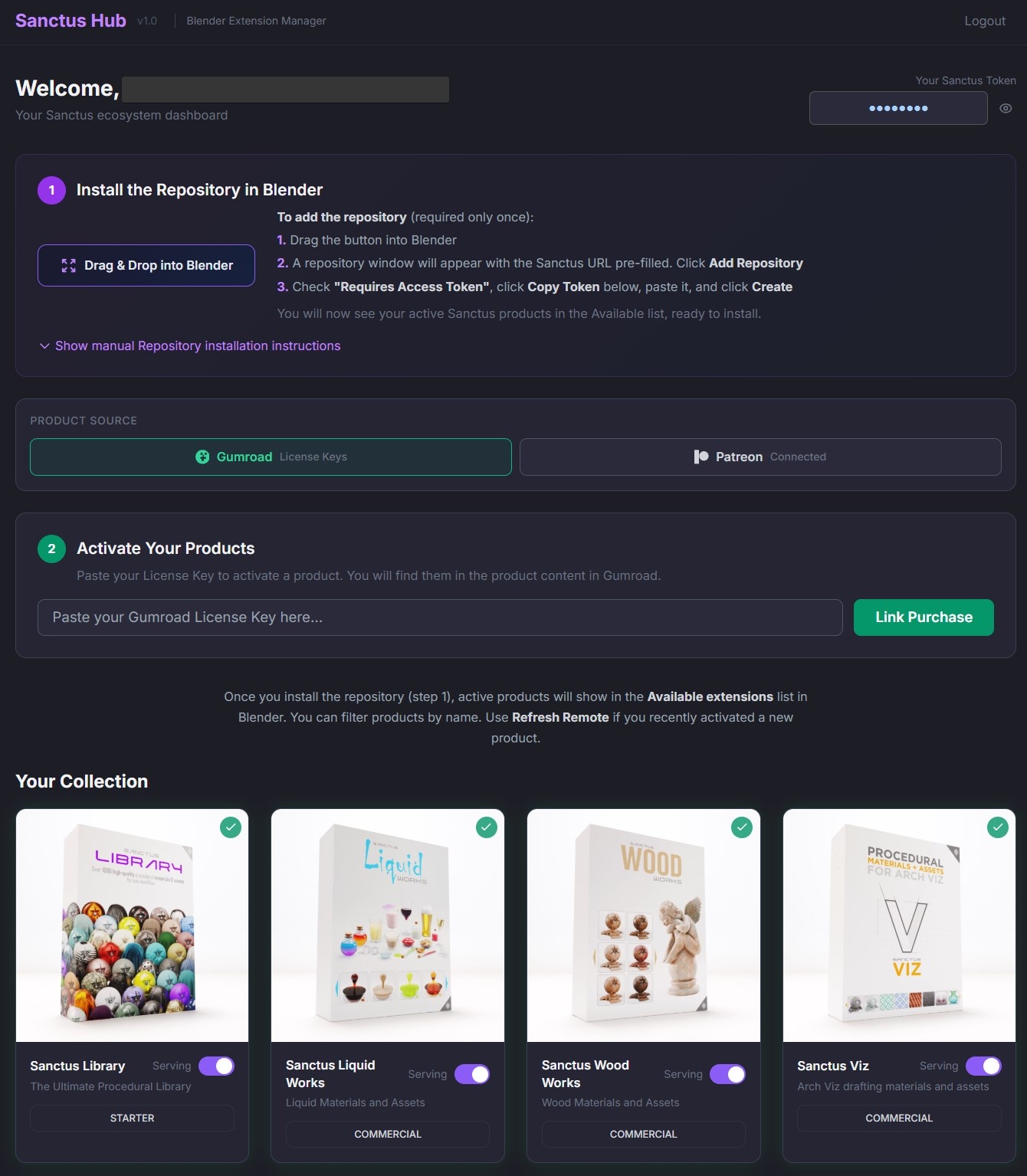
The Sanctus Hub is your central dashboard for managing Sanctus Blender extensions. From here you can link your Gumroad purchases, view your owned products, get your personal access token, and install everything directly into Blender.
Looking for Superhive or manual installation?
See the Installing Extensions guide for Superhive remote repository setup and manual ZIP installation instructions.
π Open Sanctus Hub β hub.sanctusnodes.com
Quick Start
1. Sign In
Open hub.sanctusnodes.com and sign in with your preferred method (Google, GitHub, Discord, or email).
2. Link Your Purchase
If you bought a product on Gumroad, you'll receive a License Key in your purchase email or in your Gumroad Library.
- Copy the License Key
- Paste it into the "Link a Purchase" field in the Sanctus Hub
- Click Link Purchase
The product will appear in your collection and be enabled for installation.
3. Install in Blender
Once your product is linked, you can install it in Blender using one of two methods:
Method A: Drag & Drop (Recommended)
- On the Sanctus Hub dashboard, drag the "Drag & Drop into Blender" button into your Blender viewport
- A repository window will appear with the Sanctus URL pre-filled β click Add Repository
- Check "Requires Access Token", click Copy Token, paste it, and click Create
- Your active Sanctus products will appear in the Available list, ready to install
Method B: Manual Installation
- In Blender, go to
EditβPreferencesβGet Extensions - Click Add Remote Repository and paste the repository URL from your Sanctus Hub dashboard
- Check "Requires Access Token" and paste your Sanctus Token
- Click Create
- Your products will appear in the Available list β click Install on each one
Technical Details
Updates
There are two ways Blender checks for extension updates:
Option 1: On Startup (recommended)
Enable "Check for Updates on Startup" in the repository settings (Edit β Preferences β Get Extensions β Repositories β select your Sanctus repository). With this enabled, Blender will check for updates each time it launches. If updates are available, a notification will appear in the status bar at the bottom of the Blender window.
This is the most convenient option β you don't have to remember to check manually.
Option 2: Manual check
Even without the startup option enabled, you can check for updates at any time:
- Open the Get Extensions tab (
EditβPreferencesβGet Extensions) - Click Refresh Remote to force a fresh check
- If a newer version is found on the repository, an Update (or Update All) button will appear next to the add-on
This is useful when you know a new version was just released and want to get it immediately without restarting Blender.
Only products you own and have enabled will appear in the manifest.
Troubleshooting
"No extensions found" in Blender
- Make sure you've linked your purchase in the Sanctus Hub
- Verify the product appears in "Your Collection" on the dashboard
- Check that the product toggle is enabled (green check)
- Try clicking Refresh in Blender's Remote Repository settings
Support
For help with linking purchases, installation issues, or any other questions:
- π§ Contact Support
- π¬ Join the Discord