The UI
Location: Shader Editor > N Panel N SBake tab
Settings Section
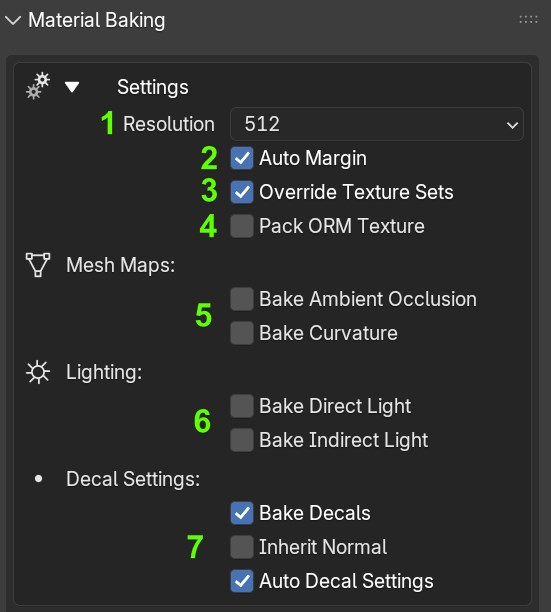
-
Texture Resolution: Sets the resolution for the baked textures. Custom resolution available when preset is set to "Custom".
-
Auto Margin: When enabled, the margin is calculated automatically based on resolution. Uncheck to set a fixed pixel margin manually.
-
Override Textures: When checked, baking a new version of a map will automatically replace the old one in the Texture Sets. Otherwise, new images with a new suffix will be created.
-
Pack ORM: When enabled, the addon automatically merges Ambient Occlusion (Red), Roughness (Green), and Metallic (Blue) into a single RGB texture. Missing channels are filled with industry-standard PBR fallback values.
-
Mesh Maps:
- Bake AO: Enables a dedicated Ambient Occlusion bake using Cycles' native ray-tracing engine. Configure samples individually per map.
- Bake Curvature: Generates a cavity/curvature mask using a non-destructive background routine. Adjust subdivision levels and type (Catmull-Clark / Simple) for finer detail extraction.
-
Lighting:
- Bake Direct Light: When enabled, direct scene illumination (sun, lamps, area lights) is baked into the Base Color map.
- Bake Indirect Light: When enabled, indirect light bounces and global illumination are baked into the Base Color map.
-
Decal Settings: (Visible only when decals are detected on the object)
- Bake Decals: If checked, decals assigned to the object will be baked together with the object's material.
- Inherit Normal: When active, decal normals blend with the underlying surface normals instead of overwriting them. This preserves micro-details like grain, cracks, and bumps underneath the decal.
- Auto Bake Settings: When enabled, ray distance is calculated automatically from the decal offset. Uncheck to set a custom ray distance.
Queue Section
-
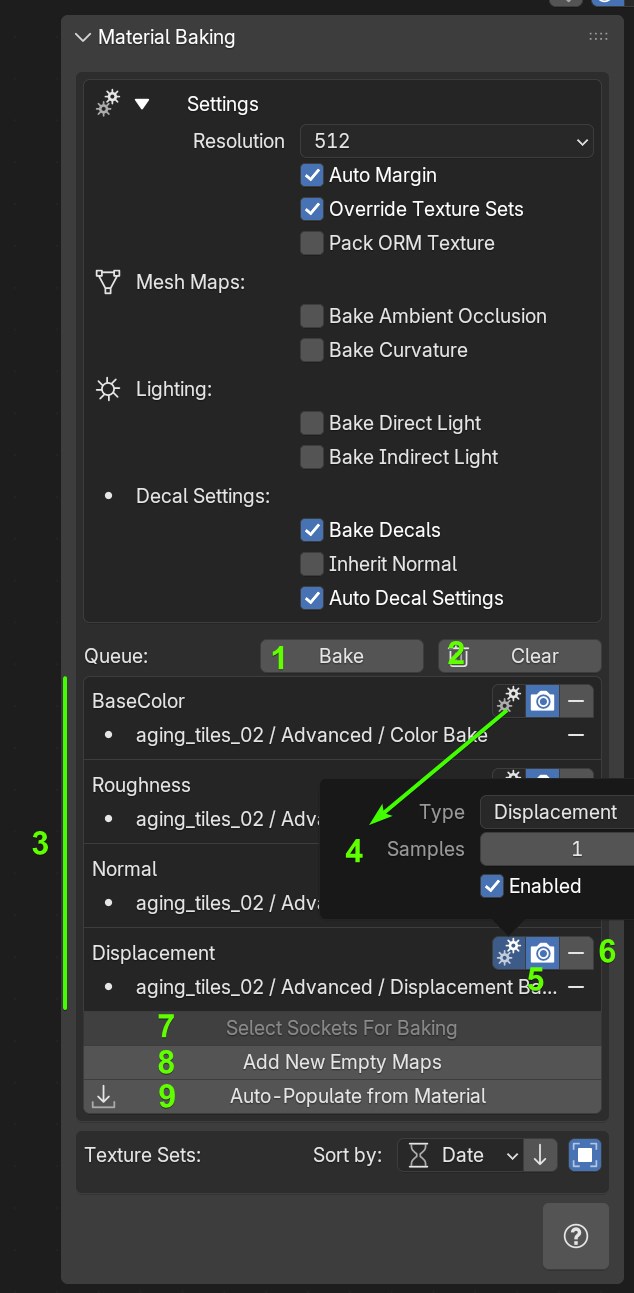
Bake Button: Initiates the baking process. Changes to "Baking..." during operation.
-
Clear Queue: Removes all maps from the current baking queue.
-
Baking Queue: Displays the list of maps queued for baking. Each map shows its type and connected socket.
-
Map Settings (Gear Icon):
- Map Type: Allows you to change the type of map to bake. If you need to bake a map type not traditionally available, choose the
OTHERtype. - Samples: Adjusts the number of samples used for baking the map.
- Active: Uncheck to exclude the map from the baking process.
- Map Type: Allows you to change the type of map to bake. If you need to bake a map type not traditionally available, choose the
-
Disable During Bake: Disables the map during baking. Useful for temporarily disabling maps without losing their socket paths and settings.
-
Remove Element: Removes individual maps from the queue using the minus symbol next to each map.
-
Select Sockets for Baking: Opens a pop-up listing available output sockets from the active node or node group. Quickly creates maps based on socket names.
-
Add New Empty Map: Opens a menu listing available Map Types that haven't already been added. There is no limit to the number of "OTHER" Map Types you can add, but there can only be one of each of the standard types (Color, Metallic, Roughness, etc.).
When a new Empty Map Type is added, or if you're in a different Material Slot, an "Add Socket" button becomes available.
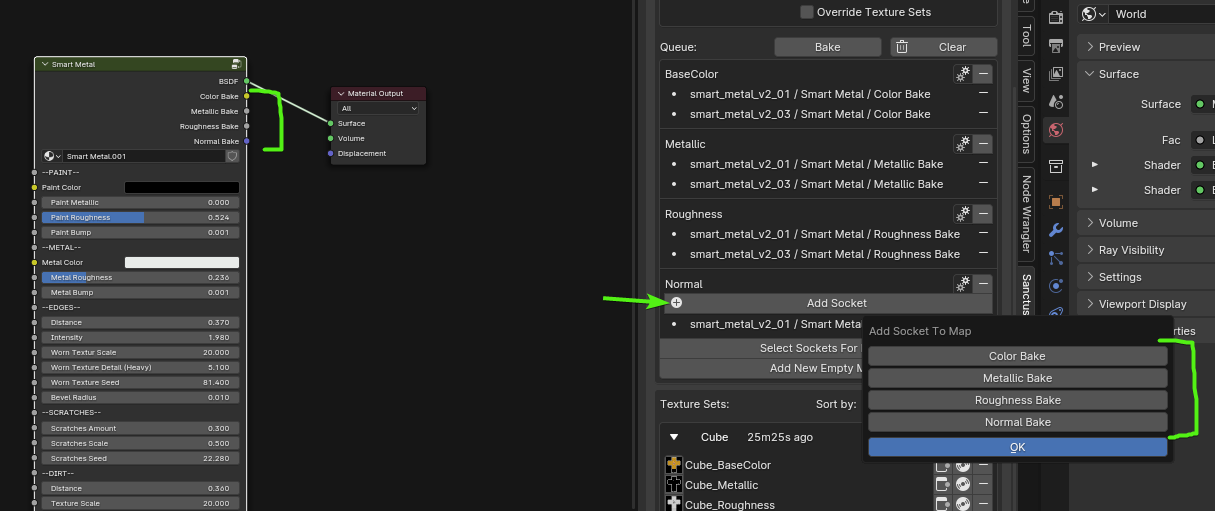
Clicking "Add Socket" will display the available Output Sockets from the selected Node or Node Group that can be added to the Map.
Only one socket from each material in each slot can be added to a single Map because you cannot bake two different sockets on the same face.
-
Auto-Populate from Material: With a single click, the engine back-traces from the material's output node and automatically populates the queue with all detected map channels. Supports both Sanctus Library NodeGroups and standard Principled BSDF setups. If the queue already has maps, a confirmation prompt will appear to replace them.
Texture Sets Section
-
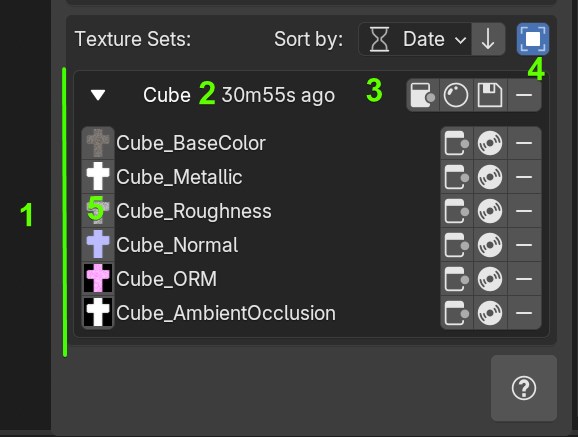
Sets: Baked maps are displayed in Sets after the baking process completes. Each baking process creates a new set unless "Override Textures" is enabled.
-
Sorting Options: Provides different ways to sort the baked map sets (by date or name).
-
Show Only Local Sets: When active (default), only bakes from the selected object are shown. Deactivating it displays every bake set from the blend file, useful if you need textures from another object's bake.
-
Set Operations:
- Instantiate Images: Adds all images from the selected Set as Image Texture Nodes in the Shader Editor.
- Instantiate PBR setup: Adds all images from the selected Set, connected to a Principled BSDF shader in the Shader Editor, creating a PBR setup. If an AO map is present, it is automatically connected as a Multiply blend on the Base Color.
- Save All: Batch saves all images in the set. Until saved, images are temporary and will be lost if Blender is closed without saving.
- Remove Elements: Removes all images from the current set.
Individual versions of these buttons are also available to affect only one image at a time (Instantiate Image, Save Image, Remove).
-
Thumbnails: Clicking the thumbnails of the baked maps will open a window displaying the full-size texture.